
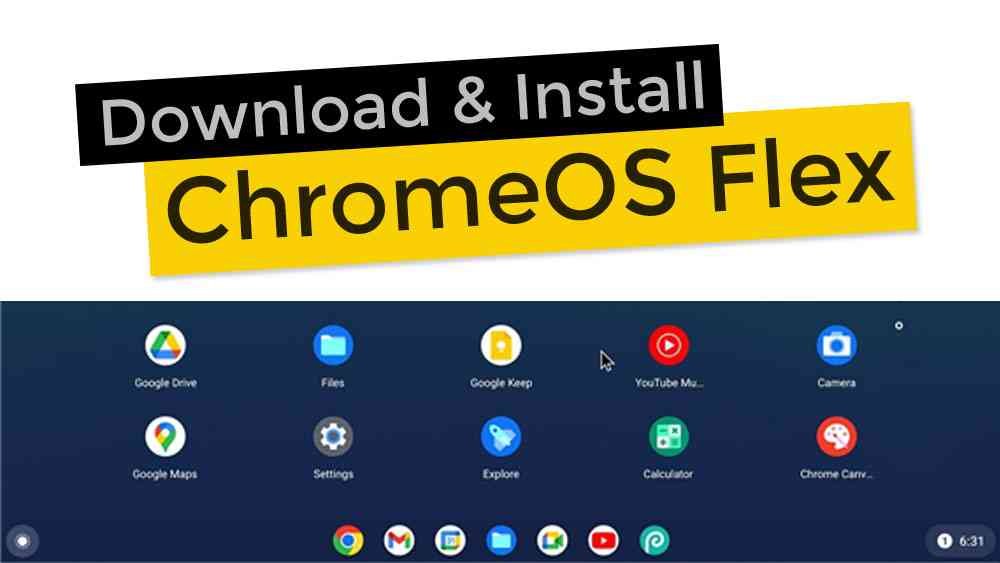
There is no general Google download that turns an ordinary Windows or Mac computer into a standard Chromebook. For most existing PCs, Google’s supported option is ChromeOS Flex, a separate ChromeOS variant designed for compatible x86-64 devices. It is not identical to the ChromeOS installation supplied on Chromebooks, and it does not support Google Play or Android apps.
Use ChromeOS Flex for a supported PC install
Check Google’s certified models list first. Google only guarantees functionality on listed models; devices outside the list may have missing features or inconsistent performance. Google’s current minimum requirements include a 64-bit Intel or AMD processor, 4 GB of RAM, 16 GB of storage and the ability to boot from USB. A USB drive of at least 16 GB is needed to prepare the installer.
Read the official preparation instructions before you begin. Google recommends creating the installer with Chromebook Recovery Utility. The USB drive is erased during setup. You can first boot from USB to try Flex, then choose installation only after checking Wi-Fi, sound, sleep, graphics and other essential hardware. Installing the system can erase the computer’s internal drive, so back up files and confirm you can restore the original operating system before proceeding.
What ChromeOS Flex can and cannot do
Flex is designed for web browsing and web applications, with optional Linux development support on compatible devices. It is not a supported way to add the Google Play Store to a PC. It also does not provide every Chromebook feature: hardware support, firmware security features and update certification depend on the exact computer model. Check Google’s notes for your device rather than assuming that a successful boot means every component is supported.
If you specifically need Android apps on Windows, compare options in our Android emulator guide. An emulator is a different product with its own app compatibility and system requirements; it does not convert Windows into ChromeOS.
Installation outline
- Back up personal files and check your model against Google’s certified list.
- On a separate computer, create the USB installer using Google’s current instructions.
- Boot the target computer from USB and test the hardware before installing.
- Install only if you are ready to replace the existing operating system and have a recovery plan.
- After setup, check for updates and test the apps, peripherals and network you rely on.
Should you install it?
ChromeOS Flex can suit a spare or older computer used mainly for browser-based work. It is a poor fit when you depend on Windows-only software, Android apps, specialist peripherals or guaranteed support on an unlisted model. For a ready-made ChromeOS device, compare current options in our Chromebook buying guide.