
A good Chromebook is a laptop that fits the work you do in ChromeOS, has a screen and keyboard you can live with every day, and will continue receiving updates for long enough to justify its price. The model name alone is not enough: the same Chromebook family may be sold with different processors, memory, displays and storage. Compare the exact configuration on the retailer or manufacturer page before buying.
Start with the kind of work you do
For school and everyday browsing
For web browsing, documents, video calls and streaming, a well-built entry or mid-range Chromebook can be enough. Prioritise a comfortable keyboard, a bright screen, reliable Wi-Fi and at least enough memory to keep your usual tabs and apps responsive. If you expect to use Android apps or Linux development tools, check that they are supported on the exact model and that storage is not too limited.
For heavier multitasking
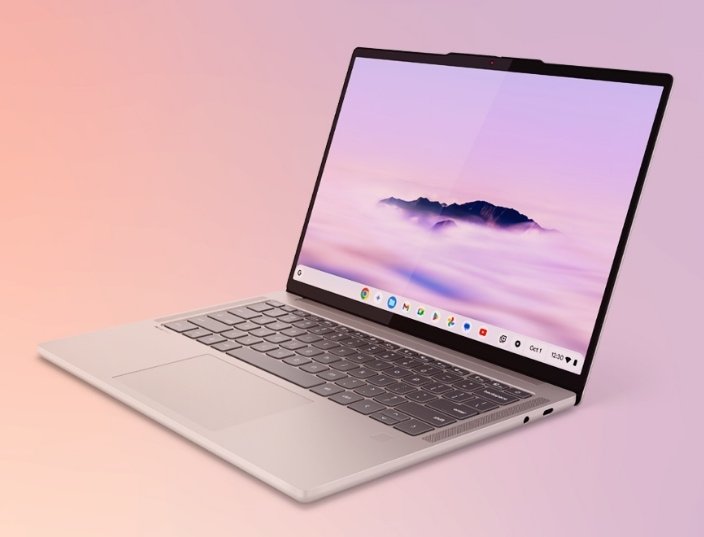
A Chromebook Plus configuration is intended to offer a higher baseline for demanding everyday work. Google’s published eligibility criteria include minimum memory and storage requirements, but retail configurations and included features can vary. Compare actual processor, RAM, storage, display and ports rather than assuming every Chromebook Plus model performs identically.
For drawing, notes and media
A convertible touchscreen is useful when you will regularly annotate documents, sketch or take handwritten notes. Before paying extra, test the hinge style, stylus support, screen brightness and aspect ratio. A touchscreen does not automatically include a stylus, and pen compatibility differs by device.
For travel
A smaller Chromebook is easier to carry, but a compact display and keyboard may feel cramped for long sessions. Check the weight, charger size, port selection and claimed battery life. Battery figures are measured under manufacturer test conditions; brightness, video calls, background apps and network quality change real-world results.
What matters most in the specification sheet
- Screen: Look at resolution, aspect ratio, brightness, reflections and whether the panel is IPS or OLED. A high resolution is not helpful if the display is dim in your workspace.
- Keyboard and touchpad: Key travel and layout affect daily comfort. Check for backlighting if you work in low light, and inspect the touchpad size and responsiveness.
- Memory: More memory helps when you keep many tabs, Android apps or Linux tools open. Consider your normal workload, not the largest number on a product page.
- Storage: ChromeOS relies heavily on cloud services, but Android apps, offline files and Linux development environments use local space. Confirm whether storage is expandable and whether the device has the ports you need.
- Processor: Chip families differ in sustained performance, graphics and battery use. Read reviews of the exact configuration if you do video editing, large spreadsheets or other intensive work.
- Update support: Google lists each Chromebook model’s automatic update expiration. Check the exact model number before buying, especially for used or refurbished devices.
A practical shortlist
Rather than declaring one laptop universally best, compare current models from established Chromebook lines against your priorities. Lenovo’s Chromebook Plus 14 is an example of a larger-screen Plus design; Acer Chromebook Spin models offer convertible form factors in some configurations; Samsung’s Galaxy Chromebook line targets users who want a premium display and finish. These names cover multiple configurations and market availability changes. Verify the model number, processor, memory, screen and update-expiration date on the manufacturer and Google support pages.
A lower-cost model can be the better purchase when its keyboard, screen and update support meet your needs. Likewise, the most expensive configuration is poor value if you mainly browse and write. The useful comparison is between the hardware you can buy locally and the work you need it to do.
Chromebook Plus: what the label tells you
Chromebook Plus is a Google-defined category with baseline hardware requirements and access to selected features. The label is a helpful first filter, not a guarantee that every model has the same speed, display quality, ports or battery life. Google can also change feature availability and requirements, so consult its current Chromebook Plus help page when comparing a purchase.
Questions to ask before buying
- Is this the exact processor, memory and storage combination shown in the listing?
- How long will this model receive automatic updates according to Google’s policy page?
- Does it support the Android apps, Linux development environment, external displays or stylus you need?
- Are the screen brightness, keyboard layout, weight and ports suitable for your work?
- Does the return policy give you time to test your common apps and peripherals?
Who should choose a different kind of laptop?
If your work depends on Windows-only desktop software, specialist peripherals or high-end PC games, ChromeOS may not be a good fit. Linux support and Android apps expand what some Chromebooks can do, but they do not turn every model into a Windows laptop. Check application requirements before purchase.
Final buying advice
Choose the least expensive Chromebook that meets your real workload, has a screen and keyboard you like, and has sufficient update support remaining. For most buyers, those details matter more than a short-lived benchmark lead. Browse Google’s Chromebook models, review its Chromebook Plus criteria, and check the device’s automatic update expiration before you pay.
ChromeOS and Chromebook guides
Need to turn an older computer into a web-focused machine? Start with our ChromeOS Flex installation guide, which explains the official installer, device checks and trade-offs. For the differences between a Chromebook and a regular PC installation, see our ChromeOS on a PC guide. If Android apps are the priority, read how Google Play access works on a PC before choosing a setup.