Tag: Best Android Emulator

Recommendations and setup guides for Android emulators. Choose by operating system and intended use, then confirm current app compatibility, system requirements and official downloads.

  • Nox Player

    Nox Player

    Nox-Player-logo-Goongloo-banner

    Nox App Player is the perfect Android Emulator to play mobile games on a PC. It lets you use almost any of these OS apps directly on your PC. Nox App Player has a comfortable user interface which makes its user addicted.

    Play Mobile Games on Your PC with Nox Player

    Nox Player is a cool program that lets you play Android games and use apps on your computer. It works with version 4.4.2, which means you can enjoy almost any Android app right on your PC!

    One of the best things about Nox Player is how easy it is to set up your controls. You can change the buttons to fit how you like to play, whether you want to use your keyboard or a game controller. This makes it fun for everyone, whether you’re new to gaming or a pro!

    With Nox Player, your computer becomes a super gaming machine. You can enjoy your favorite games on a bigger screen, and they will run smoothly. So, if you want to have more fun with mobile games, give Nox Player a try!

    At a Glance

    • Full optimization
    • Fast & Smooth Gaming experience
    • Keyword Mapping
    • Free License

    Things that make it Unique

    Emulators are created to facilitate the execution of applications and programs from one device to another. Nox App Player allows you to run Android apps and play games on your PC or Mac.

    Numerous features differentiate between Nox App Player and other Emulators. I summarize some of them here.

    Free License

    With Nox App Player, you can save your money while playing games. The free license significantly differs between Nox App Player and other Emulators.

    Compatibility

    It allows better compatibility with the most frequently downloaded mobile games. Additionally, it supports Android OS games. It is the main feature that matters a lot. It is compatible with many devices, including AMD or X86. Higher compatibility makes it easy to use on different devices.

    Stable and Reliable

    The best benefit of the Nox App Player is its reliability. With several engagements and a proven track record, it is a good option for those who want reliable tools.

    User-friendly

    An Emulator should have a user-friendly interface. This makes it easier to understand and gives the best gaming experience.

    Nox app player has an intuitive, easy-to-use interface. Furthermore, it allows you to add quick commands on your keyboard.

    Apps Supports

    Nox App Player lets you run all the latest Android Apps on your PC while playing games. You can answer your friends’ messages on WhatsApp and Snapchat and capture your pictures by using Retrica.

    Keyboard Mapping

    A fantastic gaming experience depends upon key mapping. Nox gets mapped to the keyboard for an incredible gaming experience.

    Multiple Instances

    Multiple instances let you play multiple games at the same time. You can also use Apps while playing games.

    Customizable Controls

    With Nox App Player, you can easily customize your game controls. You can easily configure your keyboard for any Android game in less than a minute. 

    Technical Information

    Title: Nox App Player

    Requirements

    Windows 8.1, Windows 10, Windows 8, Windows 7

    Language: English, Spanish, German, French, Italian, Japanese, Chinese

    License: Free

    • Slap Kings
    • Zombie Hive
    • The Seven Deadly Sins
    • Dead Zed
    • Crystalborne
    • Pokemon go
    • Power Hover: Cruise
    • Light of Thel
    • Iron Saga- Battle Mechas
    • Bleach Mobile 3D

    Bottom Line

    Nox is a perfect Android Emulator that allows you to play Android games on a PC. You can also run Android apps as many as you want. It supports Keyboards, gamepads, script recording, and others. You can also watch movies by installing Showbox Android app on your PC using Nox Player.

    Get ready to play your favorite Android Games on the big screen. You can easily download the Software from the links given below.

    System Requirements (Minimum)

    RAM2GB
    OSWindows 10, 8.1, 8, 7, and XP SP3
    Processorx86 and x64 processor
    Graphics CardGPU with OpenGL 2.0 support
    Storage3GB
  • MEmu App player

    MEmu App player

    Memu-logo-Goongloo-banner

    MEmu is one of the fastest free Android Emulators, which lets you play mobile games on a PC. It specializes in video games. Besides this, it allows you to enjoy different titles you can find for the Android platform on your computer.

    MEmu is very simple and easy to use. You have to install it and start playing. It won’t ask you about the adjustment of complicated settings.

    Unlike other emulators, MEmu gives you access to various Android games on your PC. Furthermore, it gives compatibility, customization, and file organization better than other emulators. 

    System Requirements

    • x86/x86_64 Processor (Intel or AMD CPU)
    • WinXP SP3 / Win7 / Win8 / Win8.1 / Win10
    • Windows DirectX 11 / Graphics driver with OpenGL 2.0
    • Hardware Virtualization Technology (Intel VT-x/AMD-V) shall be enabled in BIOS
    • Minimum 2GB of system memory
    • Minimum 2GB of hard disk free space

    Recommended Specification:

    • CPU: Intel i5-8400
    • RAM: 16GB
    • Graphic: Nvidia GeForce GTX 1050
    • OS: Windows 10

    Features & Highlights

    Smart Key Mapping:

    It is the most advanced image detection algorithm on our emulator. It is beneficial that all scenes only need to be familiar with only a few commonly used buttons and mouse on the keyboard. This key works best in FPS games. Currently, the smart key function is supported on these games :

    •  Call of Duty
    • PUBG
    • PUBG Lite
    • Free Fire
    • Life After
    • Brawl Stars

    Multiple Instances:

    MEmu supports multiple instances to run simultaneously. But in this regard, your system specifications matter a lot. Some games require higher performance to run smoothly on your device. MEmu instances are unlimited; you can use as many as your PC hardware resource can support, especially RAM.

    Backup & Restore User Data

    In the case of reinstalling the software, Apps and user data will be refreshed along with the Android image. The same thing happens when you start playing on another computer. This was a big concern that the players needed. Players want their data related to their gaming life; they love to keep them. With MEmu Multiple Instances Manager, you can back up/restore the data.

    What’s New

    • You can add multiple touches and macro record functions
    • Add contact Gallery as Default Apps
    • Add a function to import the MEmu file.

    Things you should know about MEmu

    Most emulators have set-up controls; you can play games using a keyboard or mouse. If you don’t like the control configuration, you can easily modify them according to your choice.

    Furthermore, Memu allows you to download Android games quite easily. It is the easiest Emulator I’ve ever used. You must click the APK button on the right side of the interface, select the APK for the games you want to install, and wait. You’re all set.

    Additionally, if you are more comfortable with console gaming, you can use an Xbox 360 controller.

    How to Update MEmu

    Users must update MEmu manually by reinstalling the updated version from their official website. But before this, make sure to backup up your data in previous MEmu so you can use it in case of installation errors.

    • PUBG Mobile
    • Fortnite Mobile
    • Lineage || Revolution
    • Vainglory
    • Hearthstone
    • Dragon Raja
    • Seven Deadly Sins

    Discover the best Android emulators for PC here >>

  • Andy

    Andy

    Andy-App-Player-logo-Goongloo-banner

    Andy is the best Android Emulator for PC or Mac. It lets you connect your Android device and desktop together in a virtual environment to provide an ideal gaming experience. The application is lightweight and provides you unlimited storage capacity, compatible with PC &  freedom to play all your favorite mobile titles on PC.

    Andy syncs your Google Play Account via Cloud, so your gaming progress will never lose.

    With this Android Emulator, you can use your mobile devices like a joystick. It permits the best connection between your desktop and your mobile device. So that you can also run Snapchat, WhatsApp right on your desktop.

    While using Andy, you can easily access your files, Camera, Microphone that are integrated with developer support.

    License

    Similar to other Android Emulators, Andy is also offering Free.

    Features & Highlights

    • Seamless sync between the desktop and mobile devices
    • Connects Windows/ Mac with Android Apps
    • Ensures up to date Android OS at all times
    • Bring your favorite Android apps to the desktop.

    Stability

    Andy offers excellent & smooth overall stability for the operating system. It is running on a newer version of Android, hence it has more apps that are compatible with it.

    Usability

    Andy has a simple, customizable interface for its all-round users. You can be as productive as you can because this software supports all apps, not just games. This runs the app from your desktop rather than opening the Andy software. It’s lightweight makes it a perfect fit for laptops and software.

    Intuitive Interface

    Andy runs exactly like an Android device and satisfies your Android Games needs on your Mac. The environment is similar to the one that you’d get on Android Phone, it is easy to use. You can use Andy in your own way, you can change and customize specs to personalize your experience.

    Gaming & Productivity

    Andy focuses on an overall experience for both games and apps. It supports third-party launchers and even widgets, that’s why games run better with Andy in terms of stability.

    Use & Set up

    The standard Android interface of Andy makes it Settings and launching easy and simple.  For Android users the software is straightforward. You can easily connect your Google Account to Andy and can launch apps from shortcuts in your Windows desktop.

    Top Mobile Apps On Andy

    • Instagram for PC
    • WeChat for PC
    • UC browser
    • Hike messenger for PC
    • ShowBox for Android and PC
    • Firefox for Android
    • WhatsApp para PC Gratis
    • MX Player for Android and PC
    • Truecaller for Android and PC
    • Line for PC
    • BBM for PC computer
    • Snapchat for PC
    • Opera Mini
    • Fiber for PC
    • Tango for PC
    • Tinder for PC & Mac
    • Pou For PC
    • Retrica for PC
    • Kim for PC
    • Snapseed for PC
    • Talkray for PC
    • Cymera for PC
    • Go-SMS-Pro for PC
    • Rounds for PC
    • Talking Tom
    • Camera360
    • Best Dubsmashes
    • Beats Music for PC
    • Calorie Counter

    Top Android Games on Andy

    There are many games that you can play on Andy, I list some of them underneath:

    • Call of Duty
    • Police Bike
    • Crossy creeper
    • Shadow fight 2
    • Cross the bridge
    • Crime Race Car
    • Cooking Fever
    • Crime City Real
    • Crazy Kitchen
    • Crazy Dentist
    • Real Rabit
    • Contract Killer
    • Racing Fever
    • Panda Pop
    • Paper Toss
    • Punch Boxing 3D
    • Pyramid Solitaire
    • Quiz Run
    • Shipwrecked
    • Shark Simulator
    • Shoot Bubble
    • Sick Bricks
    • Skee-ball
    • London Rex
    • Looksery
    • Looney Tunes
    • Magic jigsaw
    • Marvel War Hero
    • Magic Touch
    • Mafia Family
    • Five hours at the Asylum
    • Modern Combat 5
    • Monster Dash
    • Monster Baby
    • Modern sniper
    • Mr. Jump
    • Bingo Monopoly
    • Fashion Story
    • Hungry Shark
    • Kritika
    • We Supercard
    • Clash of Lords 2
    • Gunship Battle helicopter
    • Rail Rush
    • Westbound pioneer
    • Angry Birds Transformers
    • Dragon City
    • Real Steel World
    • Clash of King
    • Summoners war
    • Simpsons tapped
    • Cut the Rope 2
    • Farm Heroes
    • Deer Hunter 2014
    • Brave Frontier
    • Castle Clash
    • Boom Beach
    • Game of War
    • Clash of Clans
    • Temple Run 2
    • Subway Surfers
    • Candy Crush Saga & more.

    Bottom Line

    Android Emulators have their own strengths and weaknesses, depending on their features. But the Emulator with updated Android Software is the best choice in today’s world. Andy offers all amazing features to transform your Windows PC into the Best gaming machine giving you the best gaming experience. Playing Android Games with the same environment on a Big Screen gives an incredible gaming experience. With its endless possibilities, Andy is one of the best Android Emulators.

  • BlueStacks

    BlueStacks

    BlueStacks-logo-Goongloo-banner

    Download BlueStacks 5 offline installer setup files with direct download links from BlueStacks official servers. Choose BlueStacks 64-bit (x64) or 32-bit (x86) setup download according to your system specifications.

    BlueStacks 5 - Goongloo

    BlueStacks 5

    For Windows (Optimized for Windows 11)

    Nougat 32 bit Download
    Nougat 64 bit Download
    Pie 64-bit(Supports Hyper-V) Download
    Android 11 64-bit (beta) Download

    For macOS

    Coming soon

    BlueStacks 4 - Goongloo

    BlueStacks 4

    For Windows

    Nougat 32 bit Download
    Nougat 64 bit Download
    Hyper-V, Nougat 64 bit Download

    For macOS

    for macOS Download

    BlueStacks 5 for Mac has been under development for months. We shall list mac version too as soon as it is available on the official website.

    BlueStacks 5 Download offline installer
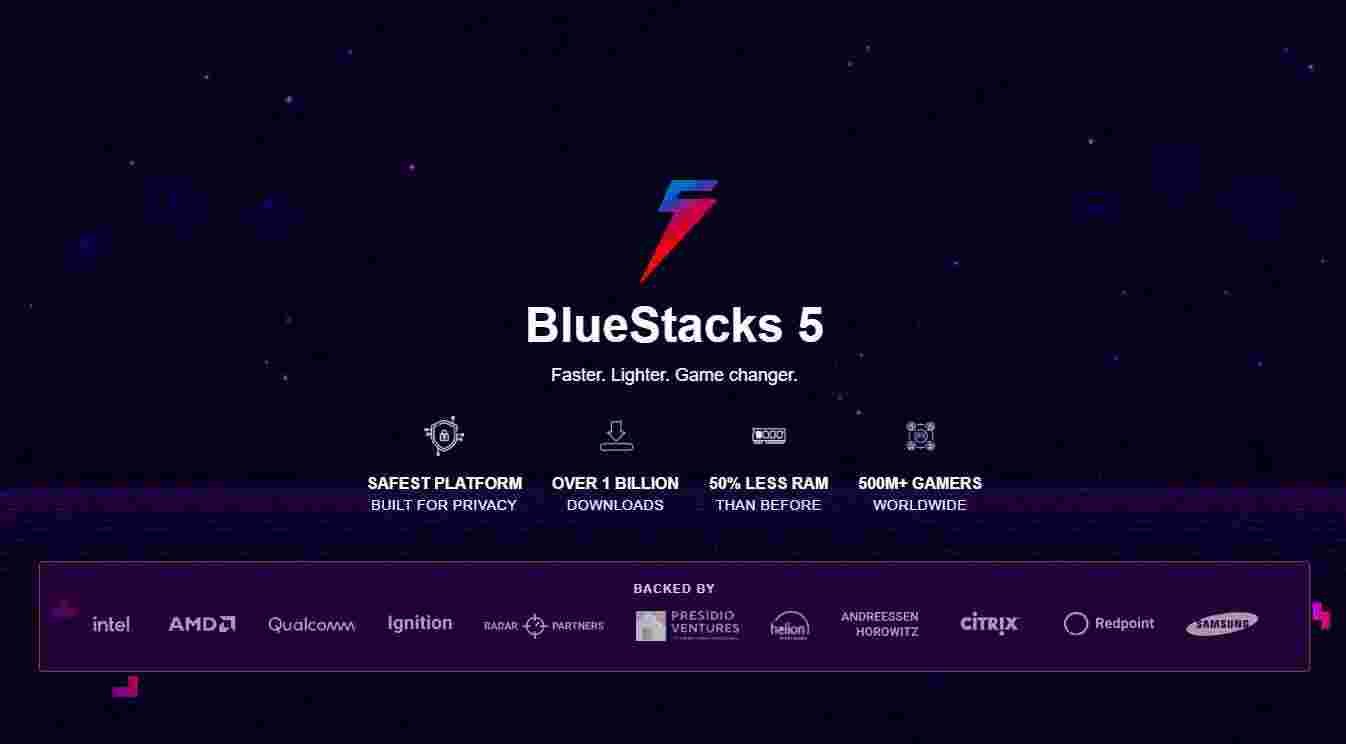
    Infographic for BlueStacks 5

    BlueStacks App Player is a tool that permits you to run Android applications on your PC. So, if you want an easy, comfortable menu, BlueStacks will be the best app for you. Its interface will allow you to manage all the features on your virtual device, with permission to download and install tons of different apps in just a few seconds.

    With BlueStacks, you can play 1M+ Android Games.

    When running the program, it will ask you if you have an Android phone. If you do, that’s great, it will allow you to sync all of your apps and tasks from your account. If you don’t have one, that’s not a big issue. You can still download apps and use them the same as above.

    Moreover, you’ll have several different options to download apps. You can download using a native app store linked to Bluestacks, accessing Google Play from your browser, or downloading APK files. BlueStacks gives better performance, a bigger screen, and more accurate controls to provide the best gaming experience to its users. These features change the way you play mobile games. Your game will never interrupt by calls or text messages.

    How to Play and Run Android Mobile Game Apps on PC

    Features

    BlueStacks is a brilliant app that provides you with the best gaming experience. It has several sparkling features, including game control, shooting mode, Multi-instance, and more. When it comes to compatibility features, BlueStacks App Player is capable of running tons of apps. It also allows you to run all kinds of Google Play Apps and apps from anywhere else.

    With its Key Mapping features, you can control your game in a more straightforward, faster way with a keyboard and mouse.

    I list some of the features below;

    Game Controls

    Game Controls and Keymapping on BlueStacks

    Now you can control and play your games on PC, just the way you want, either with a gamepad or keyboard mouse. The ease that a keyboard and mouse offer has no match with tricky touch control. You’re allowed to share your controls with your gaming buddies by export and import controls. This gives you an incredibly empowering experience.

    Additionally, you are able to customize game controls to the minutest details.

    Shooting Mode

    Shooting-Mode-with-BlueStacks

    BlueStack permits you to rule the battlefield in your favorite Android Games- Free Fire, PUBG Mobile, and COD Mobile. In this game, the scenario is ‘shooting mode on- game on’. To activate the shooting mode ‘Press F1 to Aim & Shoot with the mouse’. You’re all set. Once enabled, it gives you the power to bask in the glory of thrilling headshots.

    Using the keyboard and mouse to look around the shoot, move the character. It is straightforward. You can act faster than your enemy; more kills mean more victories.

    MOBA Mode

    Ace MOBA Games with BlueStacks

    With the advanced features of BlueStack, you can play MOBA games with special control Schemes Like a Pro. This gives you a chance to become the ultimate warrior with a much more dynamic and controlled gaming experience than your mobile phone. You can move your character much faster on a map by using the mouse

    Multi-instance

    Multi-Instance Gaming with BlueStacks

    With Multi-instance, playing multiple Android games on your PC simultaneously becomes easy simply by creating several instances of BlueStack. With this feature, you can sync the action of the primary instance on all other instances in real time & replicate the same action without any extra effort.

    Eco Mode

    Eco Mode on BlueStacks

    When running multiple BlueStacks instances, Eco Mode minimizes your PC’s resources. Now you can create more, and do more with less PC Usage. Farm mode keeps your PC up and running when multiple instances are at work.

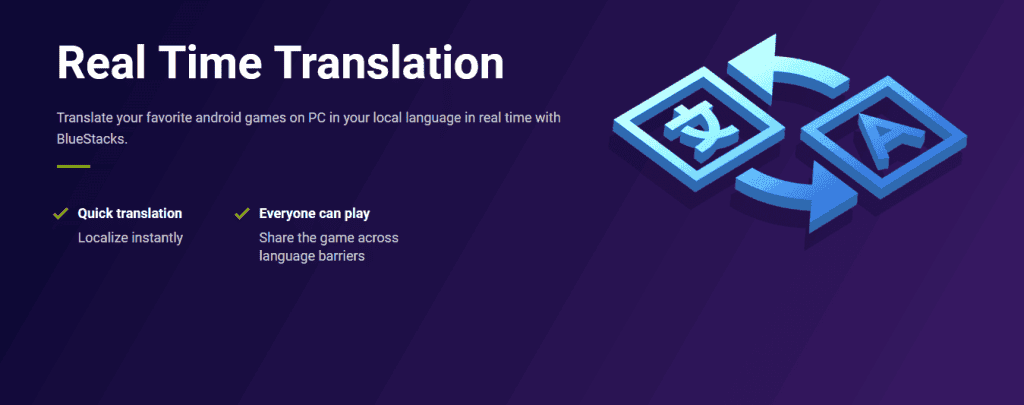
    Realtime Translation

    Real Time Game Translations with BlueStacks

    With Real-time Translation, you can translate your favorite Android games on your PC in your desired language. So that everyone can play games across language barriers.

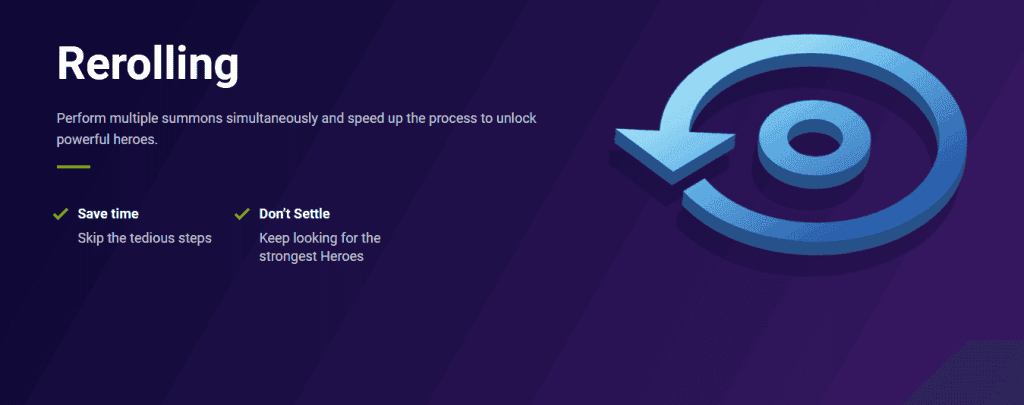
    Rerolling

    Reroll for Gacha, MMO, and RPG with BlueStacks

    With Rerolling feature, you can perform multiple summonses simultaneously and speed up the process to unlock powerful heroes. It saves you time by skipping the tedious steps. Rerolling is an integral part of game progression, and it may take a few minutes or even days, depending on your luck. With BlueStacks, you can create multiple instances to reroll more time from each.

    Script

    Automate moves with Script on BlueStacks

    With this incredible feature, you can create and run a ‘Script’ to automate a series of repetitive actions. You can perform many actions with just one key or bind a single action to a single key.

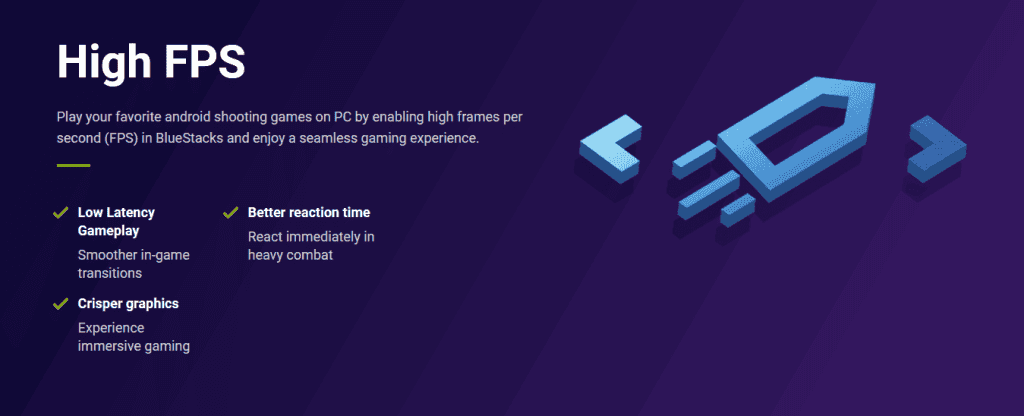
    High FPS

    High FPS 240 FPS Mobile Games on BlueStacks

    To enjoy a seamless gaming experience, BlueStacks lets you play your favorite Android Shooting games on PC by enabling High Frames Per Second so that you can react immediately in heavy combat.   

    Things you need to know about BlueStacks

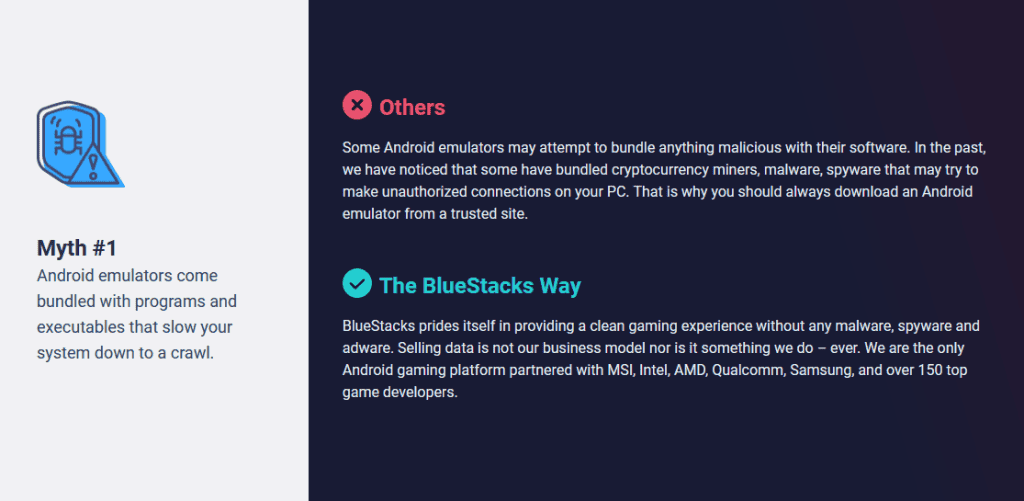
    There is a lot of rumor and misconception about BlueStacks. Unfortunately, most of them are wrong, or even worst. Make sure you know the actual facts about BlueStacks.

    FAQs

    • Which version of Bluestacks do I need if I have a 32-bit Windows PC

    You need a 32-bit Android version of Bluestacks

    • Which version of Bluestacks do I need, if I have a 64-bit Windows PC

    You need a 64-bit Android version of Bluestacks

    • Should I download Bluestacks from a third-party site?

    No. We recommend that you download Bluestacks only from the Official BlueStacks Website. Downloading BlueStacks from third-party sites may affect your PC with malware.

    Here are direct offline links to get BlueStacks offline installers.

    Learn more about BlueStacks >>

    Discover the best Android emulators for Windows, Mac, Linux, and online emulators.