
Tag: Best Android Emulator

Recommendations and setup guides for Android emulators. Choose by operating system and intended use, then confirm current app compatibility, system requirements and official downloads.

  • Choosing an Android Version in an Emulator

    Choosing an Android Version in an Emulator

    For app testing, the Android version is a technical requirement, not a cosmetic preference. The API level, system image type, and Play services availability determine whether the virtual device reproduces the behavior you need. Use Android Studio’s Virtual Device Manager to select a device profile and Android API level. Choose a Google Play image when testing Play Store or Play services behavior; choose an AOSP image for a different, rootable development environment.
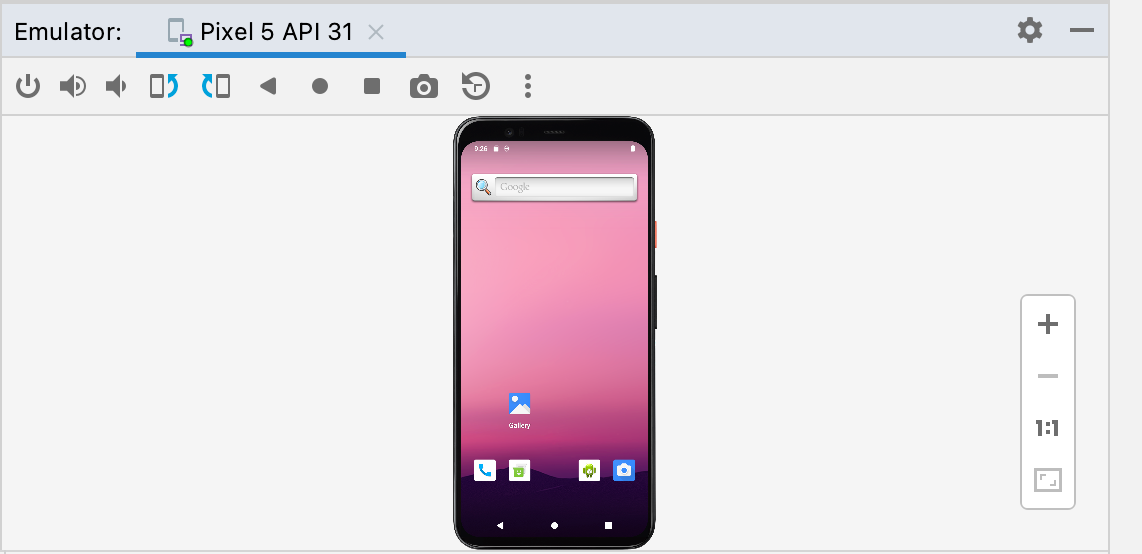
    Android Studio Emulator virtual device interface
    Android Studio Emulator interface showing a virtual device for app testing.
    A quick decision path
    STEP 1Minimum SDK
    STEP 2API-level image
    STEP 3Screen/device profile

    Choose the image that matches the test

    An app cannot run on an Android system image below its minimum SDK. A device profile also changes screen size and hardware characteristics. Google Play system images are release-signed and cannot be rooted; AOSP images can use adb root. For consumer games, a desktop emulator may provide only a limited set of Android versions, so check the vendor’s available instances.

    Options by task

    OptionGood fit whenKeep in mind
    Android Studio AVDControlled API-level and device-profile testsChoose the right system image and host resources.
    Consumer emulator instanceA game or app on the Android versions it offersVersion availability is controlled by the vendor.
    Physical Android deviceHardware or Play certification behaviorLess repeatable, but essential for some real-device checks.

    A practical setup check

    • Read the app’s minSdk and target behavior before selecting an API level.
    • Pick a phone, tablet, Wear OS, or TV profile that matches the interface you need to test.
    • Use more than one API level when checking backward compatibility, and reset device data between clean-install tests.

    Common questions

    Should I always test on the newest Android image?

    No. Test the minimum supported API and the versions your users need, including the newest relevant target.

    Which image includes Google Play?

    Only selected AVD profiles offer Google Play images. Check the image label in Device Manager.

    Can a Play image be rooted?

    Google Play system images are release-signed and do not allow elevated privileges; use an AOSP image for root testing.

    Sources for this guide

    I used the product or platform documentation below for compatibility and policy details. Check the linked source before making a setup decision, since support can change.

    Related guides: Start with the complete guide to Android virtual devices, then compare Root testing with AOSP images and Android Studio on macOS.

  • Best Android Emulator with Android 1 (Donut, Cupcake, Banana bread, Apple pie)

    Android 1, also known as the “Android Donut” release, was the first Android operating system version made available to the public. It was released in September 2009 and was followed by several other releases such as “Cupcake”, “Banana Bread,” and “Apple Pie”. Although these releases are pretty old and no longer officially supported, they can still be used with the help of Android emulators.

    An Android emulator allows you to run Android apps on your computer or laptop. This is particularly useful for those who want to use older versions of Android, such as Android 1, on their devices. This article will look at the best Android emulators that can be used with Android 1.

    1. BlueStacks: BlueStacks is one of the most popular Android emulators available. It is effortless to use and has a simple interface. It also supports older versions of Android, including Android 1.
    2. Genymotion: Genymotion is another popular Android emulator that can be used with Android 1. It is a bit more advanced than BlueStacks, but it is still very easy to use. It also supports a wide range of Android versions, including Android 1.
    3. NoxPlayer: NoxPlayer is a powerful Android emulator that can be used with Android 1. It has a wide range of features and is very fast. It also supports a wide range of Android versions, including Android 1.
    4. LDPlayer: LDPlayer is a newer Android emulator that is specifically designed for gaming. It is very fast and has a wide range of features. It also supports a wide range of Android versions, including Android 1.
    5. Andy: Andy is a relatively new Android emulator that can be used with Android 1. It has a simple interface and is very easy to use. It also supports a wide range of Android versions, including Android 1.

    These are some of the best Android emulators that can be used with Android 1. Each of these emulators has unique features and advantages, so you should choose the one that best suits your needs. Whether you want to use an older version of Android for gaming, development, or just for fun, an Android emulator is the perfect way to do it.

    Having some other version? Here is a list of the best Android emulators according to Android OS.

  • Best Android Emulator with Android 2 (Gingerbread, Froyo, Éclair)

    When it comes to emulating Android 2 (Gingerbread, Froyo, and Éclair), there are a few options to choose from.

    1. BlueStacks: One of the most popular emulators, BlueStacks is known for its smooth performance and compatibility with older versions of Android. It is also easy to use and has a wide range of features, making it an excellent choice for those looking to emulate Android 2.
    2. Droid4X: Another popular emulator, Droid4X is known for its stability and speed. It is also compatible with older versions of Android and has a simple, user-friendly interface.
    3. Genymotion: A favorite among developers, Genymotion is a powerful and feature-rich emulator that is compatible with Android 2. It also offers a wide range of customization options, making it a great choice for those who want a more tailored experience.
    4. Andy: AndY is another emulator that is compatible with Android 2 and has a simple, user-friendly interface. It also offers a wide range of features, including running apps in full-screen mode.
    5. AMIDuOS: AMIDuOS is an emulator that is compatible with Android 2 and offers a wide range of features, including the ability to run apps in full-screen mode. It is also easy to use and has a simple, user-friendly interface.

    Ultimately, the best emulator for you will depend on your specific needs and preferences. However, all of the above options are great choices for those looking to emulate Android 2.

    Having some other version? Here is a list of the best Android emulators according to Android OS.

  • Best Android Emulator with Android 3 (Honeycomb)

    When it comes to running Android 3 (Honeycomb) on your PC or laptop, the options for emulators can be a bit limited. However, there are still a few options available that can provide a solid experience.

    One of the best options for running Android 3 is the BlueStacks emulator. This emulator is available for both Windows and Mac and offers a smooth and stable experience. One of the key features of BlueStacks is its ability to run multiple apps and games at the same time, making it a great choice for multitasking.

    Another great option for running Android 3 is the Genymotion emulator. This emulator is designed specifically for developers and offers a wide range of features such as GPS simulation, camera simulation, and the ability to test apps on a variety of different devices.

    The NoxPlayer is also another good choice for running Android 3. This emulator is known for its high performance and low resource requirements, making it a great option for those with older or less powerful PCs. The NoxPlayer also offers a wide range of customization options, allowing you to tailor the emulator to your specific needs.

    Finally, the Droid4X emulator is another great option for running Android 3. This emulator is known for its stability and compatibility with a wide range of apps and games. The Droid4X also offers a range of features such as the ability to record your screen and use your PC’s keyboard and mouse to control the emulator.

    In conclusion, while options may be limited for running Android 3, there are still several quality emulators available that can provide a solid experience. Whether you’re a developer, a gamer, or just looking for a way to run your favorite Android apps on your PC, one of these emulators should suit your needs.

    Having some other version? Here is a list of the best Android emulators according to Android OS.

  • Best Android Emulator with Android 4 (KitKat, Jelly Bean, Ice Cream Sandwich)

    When running older versions of Android, such as KitKat, Jelly Bean, and Ice Cream Sandwich, a few options are available for emulating these older versions of the operating system. Here are some of the best Android emulators for these older versions of Android:

    1. Bluestacks: This popular emulator has a wide range of compatibility and can run older versions of Android, such as KitKat and Jelly Bean. It has a user-friendly interface, and it is free to use.
    2. Genymotion: This emulator is handy for developers as it allows for testing on a wide range of Android versions and devices. It can run older versions of Android, such as KitKat and Jelly Bean.
    3. LDPlayer: This emulator is another great option for running older versions of Android, such as KitKat and Jelly Bean. It is known for its smooth performance and ability to run multiple instances simultaneously.
    4. NoxPlayer: This emulator is known for its ability to run games with high graphics quality and can run older versions of Android such as KitKat and Jelly Bean.
    5. Memu: This emulator is known for its ability to run multiple instances at once, making it a great option for developers or power users. It also supports older versions of Android such as KitKat and Jelly Bean.
    6. Youwave: This emulator is a bit older, but it is still able to run older versions of Android such as Ice Cream Sandwich and Jelly Bean. It is a bit more difficult to set up than some of the other options, but it is a solid choice for older versions of Android.

    When choosing an emulator for these older versions of Android, it’s essential to consider the specific needs of your use case. For example, developers may want an emulator that can run multiple instances at once, while gamers may want an emulator that can handle high-graphics games. Ultimately, the best Android emulator for you will depend on your specific needs and preferences.

    Having some other version? Here is a list of the best Android emulators according to Android OS.

  • Best Android Emulator with Android 5 (Lollipop)

    Android 5.0 Lollipop was a major update to the Android operating system, introducing a new design language, improved performance, and new features such as material design, notifications on the lock screen, and a battery saver mode. If you’re looking to run apps or games on an Android 5.0 Lollipop emulator, there are a few options available to you.

    1. BlueStacks: BlueStacks is one of the most popular Android emulators on the market, and it supports Android 5.0 Lollipop. It allows you to run Android apps and games on your PC or Mac, and it even includes a built-in Google Play Store so you can easily download and install apps.
    2. NoxPlayer: NoxPlayer is another popular Android emulator that supports Android 5.0 Lollipop. It offers a clean and simple interface, and it includes key mapping and gamepad support for a more immersive gaming experience.
    3. LDPlayer: LDPlayer is a newer Android emulator that has quickly gained popularity among gamers. It supports Android 5.0 Lollipop, and it offers a high-performance gaming experience with its ability to use multi-instance and macro recording features.
    4. MEmu: MEmu is another powerful Android emulator that supports Android 5.0 Lollipop. It offers a smooth gaming experience with its ability to use both AMD and Intel chipsets, and it also supports multiple instances, which means you can run multiple emulators at once.
    5. Genymotion: Genymotion is a professional Android emulator that is geared towards developers, but it can also be used to run Android 5.0 Lollipop apps and games. It offers a variety of features such as GPS simulation, camera integration, and support for multiple screen resolutions.

    In conclusion, if you are looking to run apps or games on an Android 5.0 Lollipop emulator, there are several options available. BlueStacks, NoxPlayer, LDPlayer, MEmu, and Genymotion are all great choices that offer a smooth and reliable experience. It depends on your needs and preferences, so you can choose the one that suits you best.

    Having some other version? Here is a list of the best Android emulators according to Android OS.

  • Best Android Emulator with Android 6 (Marshmallow)

    When it comes to running Android 6 (Marshmallow) on your PC, there are a few emulators that stand out as the best options. Here are a few of the best Android emulators for running Android 6 (Marshmallow) on your PC:

    1. BlueStacks: BlueStacks is one of the most popular and widely used Android emulators. It is known for its fast performance, easy setup, and compatibility with various apps and games. It also offers several features that are tailored for gaming, such as key mapping and support for multiple instances.
    2. NoxPlayer: NoxPlayer is another popular Android emulator that is known for its fast performance and easy setup. It also offers many features that are tailored for gaming, such as key mapping and support for multiple instances. It also supports Android 6.0 Marshmallow, making it an ideal choice for those looking to run apps and games on this version of Android.
    3. LDPlayer: LDPlayer is a newer Android emulator that has quickly gained popularity among gamers. It is known for its fast performance, easy setup, and compatibility with a wide range of apps and games. It also offers a number of features that are tailored for gaming, such as key mapping and support for multiple instances.
    4. MEmu: MEmu is another popular Android emulator that is known for its fast performance, easy setup, and compatibility with a wide range of apps and games. It also offers a number of features that are tailored for gaming, such as key mapping and support for multiple instances. It also supports Android 6.0 Marshmallow, making it an ideal choice for those looking to run apps and games on this version of Android.
    5. Genymotion: Genymotion is an Android emulator that is tailored for developers. It allows developers to test their apps and games on various Android versions, including Android 6.0 Marshmallow. It also offers a number of features that are tailored for development, such as the ability to simulate different sensor inputs and network conditions.

    When choosing an Android emulator for running Android 6 (Marshmallow), it is crucial to consider your specific needs and requirements. If you’re a gamer, then BlueStacks, NoxPlayer, LDPlayer, or MEmu would be a great choices. If you’re a developer, then Genymotion would be an ideal choice. Ultimately, the best emulator for you will depend on your individual needs and preferences.

    Having some other version? Here is a list of the best Android emulators according to Android OS.

  • Best Android Emulator with Android 7 (Nougat)

    When running Android 7 (Nougat) on your PC, a few options are available as emulators. Here are some of the best options for running Android 7 (Nougat) on your PC:

    1. BlueStacks: This is one of the most popular and widely used Android emulators available. It allows you to run Android apps on your PC quickly and offers a smooth experience. It’s compatible with Windows and Mac.
    2. NoxPlayer: This emulator is designed for gaming and offers a smooth gaming experience. It also allows you to customize the controller settings and key mapping. NoxPlayer is compatible with Windows and Mac.
    3. LDPlayer: This emulator is another great option for gaming. It offers a high-performance gaming experience and also allows you to customize the settings and key mapping. LDPlayer is compatible with Windows.
    4. Genymotion: This more developer-oriented emulator allows you to test your apps on various Android devices and configurations. It’s compatible with Windows, Mac, and Linux.
    5. Andy: This emulator is designed to provide a seamless experience between your mobile and PC. It allows you to run Android apps on your PC and even allows you to use your phone as a remote control. Andy is compatible with Windows and Mac.
    6. Bliss OS: It is an open-source Android emulator that aims to provide a complete Android experience on a PC. It is based on Android x86, which means it can run on any device with an x86 architecture. Bliss OS is compatible with Windows and Linux.
    7. PrimeOS is another Android-x86-based emulator that aims to provide a complete Android experience on PC. It is based on Android 7.1 Nougat and supports Google Play Store, multi-window, and keyboard mapping. PrimeOS is compatible with Windows and Linux.

    In conclusion, depending on your needs and preferences, these emulators can provide a great experience running Android 7 (Nougat) on your PC. Some are great for gaming, some for app development, and others for a seamless experience between mobile and PC. Be sure to try a few out to see which one works best for you.

    Having some other version? Here is a list of the best Android emulators according to Android OS.

  • Best Android Emulator with Android 8 (Oreo)

    When it comes to emulating Android 8 (Oreo) on your PC, there are several options available. However, not all emulators are created equal, and some may be better suited to your needs than others. Here, we will take a look at some of the best Android emulators for Android 8 (Oreo) that you can use to run apps and games on your PC.

    1. NoxPlayer: This emulator is one of the most popular options for emulating Android 8 (Oreo) on your PC. It is known for its smooth performance and easy-to-use interface. It also offers a variety of customization options and supports multiple languages.
    2. BlueStacks: This is another popular emulator that is widely used for emulating Android 8 (Oreo). It is known for its high performance and compatibility with a wide range of games and apps. It also offers a variety of features such as support for multiple languages, a built-in app store, and the ability to run multiple instances.
    3. LDPlayer: This emulator is a newer option but has quickly gained popularity among users. It is known for its high performance and compatibility with a wide range of games and apps. It also offers a variety of features such as support for multiple languages, a built-in app store, and the ability to run multiple instances.
    4. MEmu: This is a newer emulator that is gaining popularity among users. It is known for its high performance and compatibility with a wide range of games and apps. It also offers a variety of features such as support for multiple languages, a built-in app store, and the ability to run multiple instances.
    5. Remix OS Player: This is an emulator that is based on Android 6.0 Marshmallow and has been specifically designed for gaming. It is known for its high performance and compatibility with a wide range of games and apps. It also offers a variety of features such as support for multiple languages, a built-in app store, and the ability to run multiple instances.
    6. Genymotion: This is an emulator that is designed for developers who want to test their apps on different versions of Android. It offers a variety of features such as support for multiple languages, a built-in app store, and the ability to run multiple instances.
    7. ARChon: This is an emulator that is designed to run Android apps on Chrome OS, Windows, and Linux. It is known for its high performance and compatibility with a wide range of games and apps. It also offers a variety of features such as support for multiple languages, a built-in app store, and the ability to run multiple instances.

    Overall, the best Android emulator for Android 8 (Oreo) will depend on your specific needs and preferences. If you are a gamer, then emulators like NoxPlayer, BlueStacks, LDPlayer, and MEmu are great options. If you are a developer, then Genymotion is a great option. And if you want to run Android apps on Chrome OS, Windows, and Linux, then ARChon is a great option.

    Having some other version? Here is a list of the best Android emulators according to Android OS.

  • Best Android Emulator with Android 9 (Pie)

    Android 9 Pie, also known as Android P, was the ninth major release of the Android operating system. It was first released in August 2018 and it focuses on improving the overall user experience by introducing new features such as gesture navigation, adaptive battery and brightness, and a new system-wide dark theme.

    When it comes to the best Android emulator for Android 9 Pie, there are several options available. Here are some of the top choices:

    1. NoxPlayer: This emulator is known for its speed and stability. It is compatible with Android 9 Pie and offers a wide range of features such as keyboard mapping and gamepad support. It also has a built-in video recording feature that allows you to record your gameplay.
    2. BlueStacks: BlueStacks is a popular emulator that is compatible with Android 9 Pie. It offers a smooth and responsive experience, and it has a wide range of features such as keyboard mapping, gamepad support, and the ability to run multiple instances of the emulator.
    3. LDPlayer: This emulator is designed specifically for gaming and it offers excellent performance and compatibility with Android 9 Pie. It also has a built-in keymapping feature that allows you to customize the controls for your games.
    4. Memu: Memu is another popular emulator that is compatible with Android 9 Pie. It offers a smooth and stable experience, and it has a wide range of features such as keyboard mapping, gamepad support, and the ability to run multiple instances of the emulator.
    5. Genymotion: Genymotion is a professional-grade emulator that is compatible with Android 9 Pie. It is designed for developers and offers a wide range of features such as GPS simulation, camera integration, and the ability to run multiple instances of the emulator.

    Overall, the best Android emulator for Android 9 Pie will depend on your specific needs. However, the above-mentioned emulators are all compatible with Android 9 Pie and offer a range of features that make them suitable for different use cases. Whether you are a gamer, a developer, or just someone looking to run Android apps on your PC, these emulators are worth considering.

    Having some other version? Here is a list of the best Android emulators according to Android OS.