Tag: Best Android Emulator

Recommendations and setup guides for Android emulators. Choose by operating system and intended use, then confirm current app compatibility, system requirements and official downloads.

  • Best Android Emulator with Android 10 (Queen Cake)

    Android 10, also known as “Queen Cake,” is the tenth major version of the Android operating system. It was first released in September 2019 and includes features such as a new gesture navigation system, improved privacy controls, and a dark mode.

    When it comes to finding the best Android emulator for Android 10, there are a few key factors to consider. These include compatibility, performance, and ease of use.

    One of the most popular and widely used Android emulators for Android 10 is BlueStacks. This emulator offers seamless compatibility with Android 10 and provides a smooth and stable experience for gamers and developers alike. It also includes features such as key mapping and multi-instance support, making it easy to play multiple games at once.

    Another great option for Android 10 is NoxPlayer. This emulator is known for its high performance and efficient use of resources, making it a great choice for those with lower-end PCs. It also offers a variety of customization options, including the ability to root the emulator and access advanced settings.

    For developers, Genymotion is a great choice. It provides a wide range of tools and features for testing and debugging Android apps, including a built-in virtual sensor controls, ability to simulate different network conditions and access to the Android SDK.

    LDPlayer is another android emulator that is designed for gaming and offers a smooth experience with android 10. It offers key mapping, macro recording and multi-instance support.

    For those looking for a lightweight and easy-to-use emulator, MEmu is a great option. This emulator is known for its fast installation and simple user interface, making it a great choice for those new to Android emulation.

    In conclusion, the best Android emulator for Android 10 will depend on your specific needs and preferences. BlueStacks, NoxPlayer, Genymotion, LDPlayer and MEmu are all great options for various use cases, whether it be gaming or app development. Be sure to try out a few different emulators to find the one that works best for you.

    Having some other version? Here is a list of the best Android emulators according to Android OS.

  • Best Android Emulator with Android 11 (Red Velvet Cake)

    Android 11, also known as Red Velvet Cake, is the latest version of the Android operating system. It was released in September 2020 and comes with a host of new features and improvements. As such, many users are looking for the best Android emulator that supports Android 11.

    When it comes to emulating Android 11, there are a few options available. Here are some of the best Android emulators that support Android 11 (Red Velvet Cake):

    1. BlueStacks: BlueStacks is one of the most popular Android emulators out there. It offers a smooth and seamless experience, and it is compatible with Android 11. This emulator is perfect for gaming and offers advanced features such as key mapping and gamepad support.
    2. NoxPlayer: NoxPlayer is another popular Android emulator that is compatible with Android 11. It offers a smooth and responsive experience, and it is great for gaming. It also offers advanced features such as key mapping and gamepad support.
    3. LDPlayer: LDPlayer is a newer Android emulator that is quickly gaining popularity. It is compatible with Android 11 and offers a smooth and responsive experience. It is perfect for gaming and offers advanced features such as key mapping and gamepad support.
    4. MEmu: MEmu is a high-performance Android emulator that supports Android 11. It is designed for gaming and offers advanced features such as key mapping and gamepad support. It also offers support for multiple instances, allowing you to run multiple emulators at once.
    5. Remix OS Player: Remix OS Player is an Android emulator that is based on the Android-x86 project. It is compatible with Android 11 and offers a smooth and responsive experience. It is perfect for gaming and offers advanced features such as key mapping and gamepad support.

    When it comes to emulating Android 11, these are some of the best options available. Each emulator offers its own set of features and capabilities, so it’s important to choose the one that best suits your needs. Whether you’re a gamer or a developer, there is an emulator out there that can help you get the most out of Android 11.

    Having some other version? Here is a list of the best Android emulators according to Android OS.

  • Best Android Emulator with Android 12 (Snow Cone)

    At the moment, Android 12 (also known as “Snow Cone”) is not yet officially released and therefore, no emulators specifically support it. However, when it is released, popular emulators such as BlueStacks, NoxPlayer, and LDPlayer will likely update to support it. It is also important to note that the performance of an emulator on a certain Android version may vary depending on the system specifications of the device being used to run the emulator. So, it would be wise to check the system requirements of the emulator before using it to ensure smooth performance.

    When it comes to finding the best Android emulator for a specific Android version, it is important to consider a few key factors:

    • Compatibility: The emulator should be compatible with the desired Android version. Some emulators may not support certain versions, so it is important to check the compatibility before downloading and installing.
    • Performance: The emulator should be able to run smoothly on the device being used. It is important to check the system requirements of the emulator and ensure that the device meets or exceeds them.
    • Additional features: Some emulators come with additional features such as root access, pre-defined key mapping, and game optimization. These features can enhance the user experience and make it easier to run certain apps or games.

    With that said, here are some of the best Android emulators for specific Android versions:

    • Android 11: BlueStacks, NoxPlayer, and LDPlayer are all great options for running apps and games on Android 11. They offer smooth performance, compatibility, and a variety of additional features.
    • Android 10: Memu Play and Remix OS Player are great options for running apps and games on Android 10. They are compatible with the latest version of Android and offer smooth performance.
    • Android 9: Genymotion and AndY are two emulators that are compatible with Android 9 and offer smooth performance. They are also well-suited for developers looking to test their apps on the latest Android version.
    • Android 8: Droid4X and YouWave are both compatible with Android 8 and offer good performance. They are also relatively lightweight, making them suitable for lower-end devices.
    • Android 7: Andyroid and Windroye are two emulators that are compatible with Android 7 and offer smooth performance. They are also relatively lightweight, making them suitable for lower-end devices.

    It’s worth noting that the above list is not exhaustive and other emulators can be compatible and perform well on different android versions as well. Also, new emulators can be developed and released that support new Android versions.

    Having some other version? Here is a list of the best Android emulators according to Android OS.

  • Best Android Emulator having fastest installation

    1. LDPlayer: This emulator has a small installation package and can be installed quickly. It also has a high compatibility rate with most games and apps.
    2. BlueStacks: This emulator is known for its fast installation process and also for its ability to run multiple apps and games simultaneously.
    3. NoxPlayer: This emulator has a fast installation process and also offers a wide range of customization options for the user. It also offers smooth performance and high compatibility with games and apps.
    4. MEmu: This emulator has a quick installation process and is known for its high performance and compatibility with a wide range of games and apps.
    5. Genymotion: This emulator is targeted towards developers and has a fast installation process. It also offers a wide range of customization options and is compatible with most games and apps.
    6. AndY: This emulator has a fast installation process and is known for its high compatibility with games and apps. It also offers a wide range of customization options for the user.
    7. ARChon: This is a lightweight emulator that can be installed quickly and is compatible with most games and apps.
    8. Remix OS Player: This emulator has a fast installation process and offers a unique experience with its multi-window support and key-mapping feature.

    Note that the above list is not exhaustive and the performance of the Android emulator also depends on your device’s hardware and software configuration.

    Explore more Android emulators with super unique features:

  • Best Android Emulator for 512MB RAM

    1. LDPlayer: This emulator is specifically designed for low-end PCs and laptops, and it can run smoothly on a device with 512MB of RAM. It is known for its high compatibility with games and apps, and it also provides various optimization options for users to improve performance.
    2. BlueStacks: This is one of the most popular Android emulators, and it can run on a device with 512MB of RAM. It offers a wide range of features and is compatible with many games and apps.
    3. NoxPlayer: Another popular emulator that can run on a device with 512MB of RAM. It offers high performance and compatibility, and it also provides a wide range of customization options for users.
    4. MEmu: This emulator is lightweight and can run smoothly on a device with 512MB of RAM. It offers high compatibility with games and apps, and it also provides users with various optimization options to improve performance.
    5. Droid4X: This emulator is known for its high compatibility with games and apps, and it can run smoothly on a device with 512MB of RAM. It also provides users with various customization options to improve performance.
    6. Genymotion: This is a powerful emulator for developer, it also can run on a device with 512MB of RAM. It offers high performance and compatibility, and it also provides a wide range of customization options for users.
    7. AndY: This is a free android emulator and it can also run on a device with 512MB of RAM. It offers high compatibility with games and apps, and it also provides users with various optimization options to improve performance.
    8. YouWave: This emulator is lightweight and can run smoothly on a device with 512MB of RAM. It offers high compatibility with games and apps, and it also provides users with various optimization options to improve performance.

    Please note that even though these emulators can run on devices with 512MB of RAM, the performance may not be optimal and some lag may be experienced.

    Related Android emulator reading

    To compare this option with other desktop players, visit the main Android emulator roundup.

    Related: RAM and performance guide.

  • Best Android Emulator for 32GB RAM

    Regarding Android emulators, the amount of RAM available on your computer is not the only determining factor in terms of performance. However, having a high amount of RAM can help run resource-intensive apps and games.

    Here are some options for Android emulators that are known to perform well on computers with 32GB of RAM:

    1. BlueStacks: BlueStacks is one of the most popular and widely used Android emulators. It is known for its smooth performance and support for many apps and games. It also offers various features such as key mapping and multi-instance support.
    2. NoxPlayer: NoxPlayer is another widely used Android emulator known for its smooth performance and compatibility with many apps and games. It also offers key-mapping and multi-instance support.
    3. LDPlayer: LDPlayer is a newer Android emulator that is gaining popularity among gamers. It is known for its smooth performance and compatibility with many of the latest games. It also offers key-mapping and multi-instance support.
    4. Gameloop: Gameloop is an android emulator that is specifically designed for gaming. It is known for its smooth performance and compatibility with a wide range of games.
    5. Remix OS Player: Remix OS Player is an Android emulator that is based on the Remix OS operating system. It is known for its smooth performance and ability to run multiple apps and games at once.

    It is important to note that the performance of an Android emulator can also depend on the specific hardware and software configuration of your computer, so it’s always a good idea to try out a few different options to see which one works best for your specific setup.

    Related Android emulator reading

    See the full Android emulator guide for recommendations across gaming, app testing and operating systems.

    Related: RAM and performance guide.

  • Online Android Emulators: Browser Testing and Cloud Devices

    Online Android Emulators: Browser Testing and Cloud Devices

    “Online Android emulator” can mean a browser preview, a remotely hosted virtual device, or a streamed phone. These are different services, and many are intended for app testing rather than playing consumer games. For development, compare a reputable cloud device service with Android Studio’s local emulator. Verify whether the service provides an interactive Android device, a browser app preview, or automated tests; do not enter personal credentials into an unknown demo.

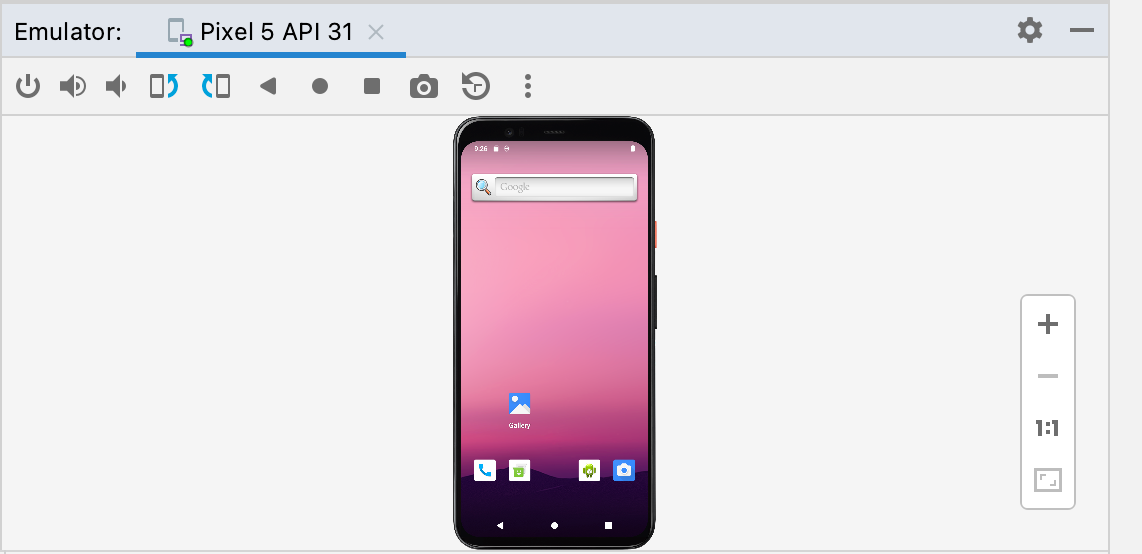
    Android Studio Emulator virtual device interface
    Android Studio local emulator shown for comparison; browser and cloud services operate differently.
    A quick decision path
    STEP 1Identify the service type
    STEP 2Check privacy and device image
    STEP 3Use test data

    Three kinds of browser-based Android access

    A cloud virtual device gives you a remote Android environment over the network. A browser preview may only show an app build in a simulated frame. A device-testing service can run tests on a managed device pool without offering a general interactive desktop. Latency, sensors, Google services, file transfer, and session time differ, so check the actual service rather than the word “online.”

    Options by task

    OptionGood fit whenKeep in mind
    Genymotion CloudRemote Android virtual devices for developmentCheck service plans, device images, and interactive-session limits.
    Android Studio EmulatorLocal, repeatable app testingRequires installation and local machine resources.
    Browser app previewQuick visual checks for some buildsNot equivalent to full Android, game, or sensor testing.

    A practical setup check

    • Read the service’s device, Android-version, session, and privacy documentation before uploading an app.
    • Use a test account and nonproduction data; remove builds and revoke access after a session.
    • For repeatable local debugging, Android Studio’s Emulator can work offline once the required system image is installed.

    Common questions

    Can I play any Android game in a browser emulator?

    Usually not. Many browser services are app-testing tools and do not provide game catalogs, low-latency input, or publisher-supported gameplay.

    Is a cloud emulator the same as a physical device?

    No. It may be a virtual device or a streamed physical device; the provider should say which one.

    Should I sign into my personal Google account?

    Avoid doing so in an unknown service. Check the provider’s security and data-retention terms and use a test account.

    Sources for this guide

    I used the product or platform documentation below for compatibility and policy details. Check the linked source before making a setup decision, since support can change.

    Related guides: Start with the complete Android emulator comparison, then compare Linux local Android environments and USB and portable emulator claims.

  • Best Android Emulator for PC Gamers

    Best Android Emulator for PC Gamers

    For PC gaming, prioritize the game’s supported route, update reliability, and input controls. A broad emulator can run many titles, but it cannot guarantee that every publisher allows or maintains emulator play. Try BlueStacks 5 or LDPlayer for general Android game access; use Google Play Games on PC when your game is listed there. Choose GameLoop only for titles it currently supports, and check the publisher’s emulator policy.

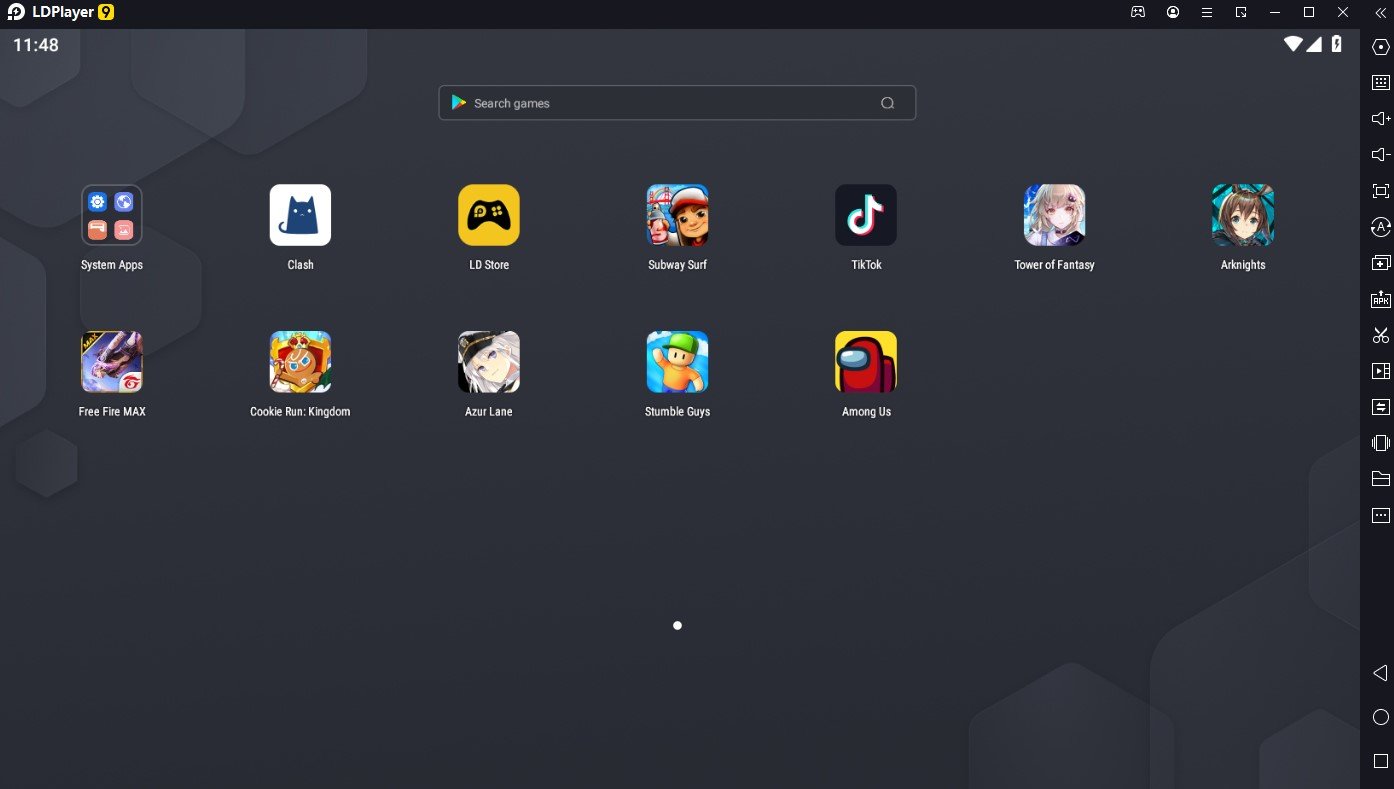
    LDPlayer Android emulator interface
    LDPlayer interface screenshot; a product interface does not establish game support or a frame-rate result.
    A quick decision path
    STEP 1Catalog availability
    STEP 2Publisher rules
    STEP 3Controls and stability

    Choose by the game, not by headline FPS claims

    Game catalogs, anti-cheat systems, account rules, and control profiles differ. A high frame-rate slider does not prove that a game will run at that rate or that its publisher supports the emulator. Start with the official PC catalog if the title appears there; otherwise use the game publisher’s policy and emulator compatibility notes as your filter.

    Options by task

    OptionGood fit whenKeep in mind
    BlueStacks 5Broad Android game access and configurable controlsVerify the specific title and its rules.
    LDPlayerA second gaming-focused option to compareCompatibility and controls vary by game.
    Google Play Games on PCA listed title with a supported PC buildOnly includes games made available in its catalog.
    GameLoopA game currently in its PC catalogNot intended as a universal app environment.

    A practical setup check

    • Search the game in Google Play Games on PC and the emulator’s official catalog.
    • Check the game’s support page for emulator or keyboard-and-mouse rules.
    • Install from the official emulator site and test controls in a practice mode before using a competitive account.

    Common questions

    Which emulator gives the highest FPS?

    There is no trustworthy universal winner. Results vary with PC hardware, settings, game build, and thermal limits.

    Can I use macros in a competitive game?

    Check the game rules. Automation can violate a publisher’s terms even when the emulator includes a macro feature.

    Sources for this guide

    I used the product or platform documentation below for compatibility and policy details. Check the linked source before making a setup decision, since support can change.

    Need the full comparison? Visit the broad comparison of game emulators. For a related setup, read Game-by-game emulator choices and Keyboard and mouse mapping.

  • Best Android Emulator for Developers: Android Studio Guide

    Best Android Emulator for Developers: Android Studio Guide

    For Android app development, Google’s Android Studio Emulator is the first tool to try. It is integrated with Android Studio, supports configurable virtual devices and lets you run the app you are building while using Android’s debugging and profiling tools. Consumer game emulators are designed for a different job and generally do not provide the same test controls.

    Android Studio Android Emulator running on a virtual Pixel device
    A virtual device running inside the Android Emulator. This setup is intended for development and app testing.

    Why developers use Android Studio’s Emulator

    An Android Virtual Device (AVD) describes the virtual hardware profile and system image used for a test. You can make profiles for different screen sizes, device types and Android API levels, then launch your app on each one without keeping a physical phone for every configuration. The emulator also provides controls for actions such as rotation, location and simulated network conditions.

    Because the Emulator is part of the Android development toolchain, it can be launched from Android Studio, used as a deployment target and paired with debugging tools. This is useful for reproducing a bug against a known API level or checking layouts across a range of virtual device profiles.

    How to choose an AVD

    • Match the API level: Test the minimum Android version your app supports and the versions most relevant to your users.
    • Cover screen differences: Include the form factors your app supports, such as phone, tablet, Wear OS, TV or Automotive where applicable.
    • Use appropriate system images: Google Play-enabled images are useful for testing Play services and store-related behaviour; other images suit different development tasks.
    • Keep a clean test profile: Separate AVDs help reproduce issues without state left over from another test.
    • Check hardware acceleration: The host CPU, graphics driver and virtualization configuration can affect startup and performance.

    What an emulator cannot fully replace

    A virtual device is not identical to a retail phone. Real camera quality, Bluetooth accessories, biometric hardware, cellular behaviour, battery use and manufacturer-specific changes need testing on physical hardware. Some features can be simulated, but simulation does not prove the same result on every model. Before release, test the app on representative phones and tablets, and use real devices for features that depend on physical sensors or vendor services.

    Performance and troubleshooting

    The Android Emulator can be demanding, especially when several virtual devices, IDEs and browsers are open at once. Consult the current Android Studio system requirements for your operating system and workload. If the emulator is slow or fails to boot, check available memory and disk space, update Android Studio and SDK components, verify hardware acceleration, and review Google’s troubleshooting guide before changing advanced settings.

    Keep emulator images and SDK tools current through Android Studio’s SDK Manager. When an AVD behaves unexpectedly, a cold boot or a clean virtual device can help distinguish corrupted test state from an app bug. Keep a reproducible test case and record the selected device profile and API level.

    Alternatives for specialized testing

    Genymotion may be useful for particular cloud, device-farm or enterprise workflows, but confirm its current pricing, supported Android images and feature set with the vendor. For normal Android app development, the Google-maintained Emulator remains the most direct integration with Android Studio. BlueStacks and other gaming players are not substitutes for development AVDs.

    For the complete comparison of consumer and developer tools, see our Android emulator guide. If your goal is to run apps rather than test your own, see the Android app emulator guide.

    Official setup and troubleshooting: Run apps on the Android Emulator, troubleshooting and emulator tool comparison.

  • Best Android Emulator for 1GB RAM

    Best Android Emulator for 1GB RAM

    Regarding Android emulators and 1GB of RAM, performance may be limited, and some of the more resource-intensive apps and games may not run smoothly. Here are a few options that are known to work well with 1GB of RAM:

    Dear Friends,

    We support your passion for Android emulation on 1GB RAM PCs. Consider a RAM upgrade to 2, 3, or 4GB if your computer allows. Used RAM options are budget-friendly and reliable. Unleash smoother performance and broaden your possibilities.

    For fixed RAM systems, embrace your PC’s unique strengths beyond gaming. It’s a versatile tool for diverse tasks. Your journey is inspiring, and we’re here cheering you on.

    Best Regards,
    Goongloo.com

    1. BlueStacks Lite: BlueStacks Lite is a lightweight version of the popular BlueStacks Android emulator. It’s designed to run on lower-spec PCs and laptops and can run on 1GB of RAM.
    2. LDPlayer Lite: LDPlayer Lite is a lightweight version of the LDPlayer Android emulator. It’s designed to run on lower-spec PCs and laptops and can run on 1GB of RAM.
    3. NoxPlayer Lite: NoxPlayer Lite is a lightweight version of the NoxPlayer Android emulator. It’s designed to run on lower-spec PCs and laptops and can run on 1GB of RAM.
    4. MEmu Lite: MEmu Lite is a lightweight version of the MEmu Android emulator. It’s designed to run on lower-spec PCs and laptops and can run on 1GB of RAM.
    5. PrimeOS Mini: PrimeOS Mini is a lite version of PrimeOS that is designed to run on low-end machines. It can run on 1GB of RAM with minimalistic experience.

    It’s worth noting that while these emulators are known to run well on 1GB of RAM, the actual system requirements may vary depending on the specific apps or games you plan to use with the emulator. Additionally, you may want to close unnecessary background processes and lower the resolution and graphical settings to improve performance.

    Enhancing Your PC Experience for Android Emulation:

    We understand that many of you are eager to explore the world of Android emulation on your PCs, even with limited resources like 1GB of RAM. We truly appreciate your enthusiasm and curiosity in pushing the boundaries of technology.

    While it’s admirable to make the most of what you have, we want to share a heartfelt suggestion that might elevate your experience even further. If your computer allows for it, adding extra RAM could significantly enhance your Android emulation endeavors. We understand that hardware upgrades can sometimes be intimidating, but rest assured, it’s not as complex or costly as it may seem.

    You might be surprised that a modest investment in additional RAM, say 2, 3, or even 4GB, can remarkably improve your system’s performance. The best part is RAM prices have become quite reasonable, and you might even find great deals on gently used RAM modules that have been tested for reliability. It’s like giving your computer fresh air, empowering it to run Android emulators and other resource-intensive applications smoothly.

    However, we also recognize that not all systems are open to RAM upgrades, and some devices come with fixed RAM. In such cases, we encourage you to view your computer as a versatile tool with unique strengths. It may not be ideal for gaming or running resource-demanding emulators, but that doesn’t diminish its value. Your PC can still serve you impeccably for many other tasks and activities, such as browsing, content creation, learning, and more.

    Remember, every computer has a story to tell, and yours is no different. Its capabilities might have limitations, but those limitations don’t define its worth. Embrace its strengths and explore the endless possibilities it offers beyond gaming and emulation. You might uncover hidden talents that your device excels at, leading you down exciting new paths.

    In closing, whether you’re considering a RAM upgrade or embracing your computer’s uniqueness, we want you to know that we stand by you. Your dedication to technology is inspiring, and your journey is a testament to your curiosity and determination. As you continue to explore and create, may your experiences be as joyful and enriching as possible.

    Thank you for being a part of our community. Your pursuit of knowledge and innovation is what drives us forward.