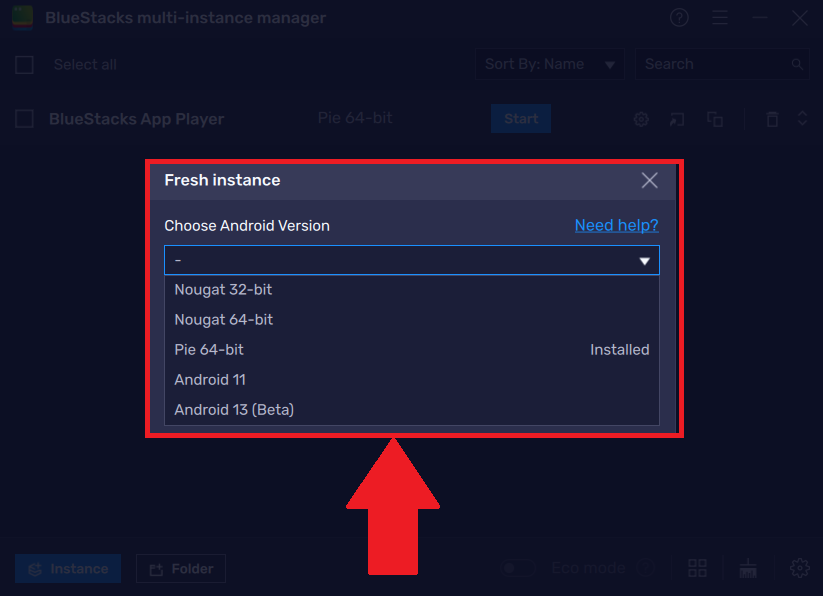
Tag: Best Android Emulator

Recommendations and setup guides for Android emulators. Choose by operating system and intended use, then confirm current app compatibility, system requirements and official downloads.

  • Best Android Emulator for 2GB RAM

    When it comes to Android emulators and 2GB of RAM, performance may be limited and some of the more resource-intensive apps and games may not run smoothly. Here are a few options that are known to work well with 2GB of RAM:

    1. BlueStacks 2: BlueStacks 2 is an older version of the popular Android emulator that is designed to run on PCs and laptops with lower specifications. It can run on 2GB of RAM, but performance may not be as smooth as with higher amounts of RAM.
    2. LDPlayer 2: LDPlayer 2 is an older version of the Android emulator that is designed to run on lower-spec PCs and laptops. It can run on 2GB of RAM, but performance may not be as smooth as with higher amounts of RAM.
    3. NoxPlayer 2: NoxPlayer 2 is an older version of the Android emulator that is designed to run on lower-spec PCs and laptops. It can run on 2GB of RAM, but performance may not be as smooth as with higher amounts of RAM.
    4. MEmu 2: MEmu 2 is an older version of the Android emulator that is designed to run on lower-spec PCs and laptops. It can run on 2GB of RAM, but performance may not be as smooth as with higher amounts of RAM.
    5. PrimeOS Lite : PrimeOS Lite is a lite version of PrimeOS which is designed to run on low end machines, it can run on 2GB of RAM with minimalistic experience.

    It’s worth noting that while these emulators are known to run well on 2GB of RAM, the actual system requirements may vary depending on the specific apps or games you plan to use with the emulator. Additionally, you may want to close unnecessary background processes, lower the resolution and graphical settings to improve performance.

    Related Android emulator reading

    This is one use case covered in our Android emulator comparison, which weighs tools by what you need to do.

    Related: RAM and performance guide.

  • Best Android Emulator for 3GB RAM

    When it comes to Android emulators and 3GB of RAM, performance may be limited and some of the more resource-intensive apps and games may not run smoothly. Here are a few options that are known to work well with 3GB of RAM:

    1. BlueStacks 3: BlueStacks 3 is an older version of the popular Android emulator that is designed to run on PCs and laptops with lower specifications. It can run on 3GB of RAM, but performance may not be as smooth as with higher amounts of RAM.
    2. LDPlayer 3: LDPlayer 3 is an older version of the Android emulator that is designed to run on lower-spec PCs and laptops. It can run on 3GB of RAM, but performance may not be as smooth as with higher amounts of RAM.
    3. NoxPlayer 3: NoxPlayer 3 is an older version of the Android emulator that is designed to run on lower-spec PCs and laptops. It can run on 3GB of RAM, but performance may not be as smooth as with higher amounts of RAM.
    4. MEmu 3: MEmu 3 is an older version of the Android emulator that is designed to run on lower-spec PCs and laptops. It can run on 3GB of RAM, but performance may not be as smooth as with higher amounts of RAM.
    5. PrimeOS Lite : PrimeOS Lite is a lite version of PrimeOS which is designed to run on low end machines, it can run on 3GB of RAM with minimalistic experience.

    It’s worth noting that while these emulators are known to run well on 3GB of RAM, the actual system requirements may vary depending on the specific apps or games you plan to use with the emulator. Additionally, you may want to close unnecessary background processes, lower the resolution and graphical settings to improve performance.

    Related Android emulator reading

    See the full Android emulator guide for recommendations across gaming, app testing and operating systems.

    Related: RAM and performance guide.

  • Best Android Emulator for 4GB RAM

    When it comes to Android emulators and 4GB of RAM, there are a few options to choose from, but performance may not be as smooth as with higher amounts of RAM. Here are a few options that are known to work well with 4GB of RAM:

    1. BlueStacks 4: BlueStacks 4 is a popular Android emulator that is designed to run on PCs and laptops with lower specifications. It can run on 4GB of RAM, but performance may not be as smooth as with higher amounts of RAM.
    2. LDPlayer: LDPlayer is an Android emulator that is designed to run on lower-spec PCs and laptops. It can run on 4GB of RAM, but performance may not be as smooth as with higher amounts of RAM.
    3. NoxPlayer: NoxPlayer is an Android emulator that is designed to run on lower-spec PCs and laptops. It can run on 4GB of RAM, but performance may not be as smooth as with higher amounts of RAM.
    4. MEmu: MEmu is an Android emulator that is designed to run on lower-spec PCs and laptops. It can run on 4GB of RAM, but performance may not be as smooth as with higher amounts of RAM.
    5. PrimeOS: PrimeOS is an android-x86 based operating system which provides desktop experience on any x86 based device, it can run on 4GB of RAM with minimalistic experience.

    It’s worth noting that while these emulators are known to run well on 4GB of RAM, the actual system requirements may vary depending on the specific apps or games you plan to use with the emulator. Additionally, you may want to close unnecessary background processes, lower the resolution and graphical settings to improve performance.

    Related Android emulator reading

    For the complete comparison across gaming, development and desktop use, see our Android emulator guide.

    Related: RAM and performance guide.
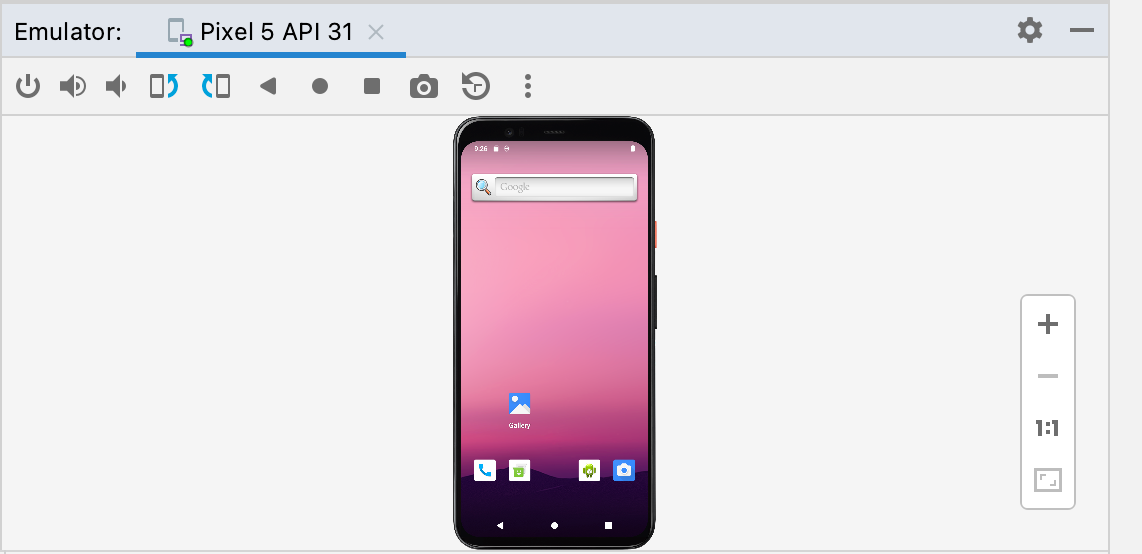
  • Best Android Emulator for 8GB RAM

    When it comes to Android emulators and 8GB of RAM, there are several options to choose from. Here are a few options that are known to provide good performance with 8GB of RAM:

    1. BlueStacks: BlueStacks is a popular Android emulator that is designed to run on PCs and laptops with moderate specifications. It can run smoothly on 8GB of RAM, providing a stable experience.
    2. LDPlayer: LDPlayer is an Android emulator that is designed to run on moderate-spec PCs and laptops. It can run smoothly on 8GB of RAM, providing a stable experience.
    3. NoxPlayer: NoxPlayer is an Android emulator that is designed to run on moderate-spec PCs and laptops. It can run smoothly on 8GB of RAM, providing a stable experience.
    4. MEmu: MEmu is an Android emulator that is designed to run on moderate-spec PCs and laptops. It can run smoothly on 8GB of RAM, providing a stable experience.
    5. PrimeOS: PrimeOS is an android-x86 based operating system which provides desktop experience on any x86 based device providing a smooth experience on 8GB of RAM.

    It’s worth noting that while these emulators are known to run well on 8GB of RAM, the actual system requirements may vary depending on the specific apps or games you plan to use with the emulator. Additionally, you may want to close unnecessary background processes and lower the resolution and graphical settings to improve performance.

    Related Android emulator reading

    See the full Android emulator guide for recommendations across gaming, app testing and operating systems.

    Related: RAM and performance guide.

  • Best Android Emulator for 16GB RAM

    When it comes to Android emulators and 16GB of RAM, the options are plenty. Here are a few options that are known for providing smooth performance with a large amount of RAM:

    1. BlueStacks 4: BlueStacks 4 is a popular Android emulator that is designed to run on high-end PCs and laptops. It has a high-performance engine that can take advantage of 16GB of RAM, providing smooth performance and a stable experience.
    2. LDPlayer: LDPlayer is an Android emulator that is designed to run on high-end PCs and laptops. It has a high-performance engine that can take advantage of 16GB of RAM, providing smooth performance and a stable experience.
    3. NoxPlayer: NoxPlayer is an Android emulator that is designed to run on high-end PCs and laptops. It has a high-performance engine that can take advantage of 16GB of RAM, providing smooth performance and a stable experience.
    4. MEmu: MEmu is an Android emulator that is designed to run on high-end PCs and laptops. It has a high-performance engine that can take advantage of 16GB of RAM, providing smooth performance and a stable experience.
    5. Genymotion: Genymotion is an Android emulator that is specifically designed for app developers. It can take advantage of 16GB of RAM to provide a smooth experience and allows to test apps on different android version without owning the physical devices.

    It’s worth noting that while these emulators can take advantage of a large amount of RAM, the actual system requirements may vary depending on the specific apps or games you plan to use with the emulator. Additionally, you may want to close unnecessary background processes and lower the resolution and graphical settings to improve performance.

    Related Android emulator reading

    To compare this option with other desktop players, visit the main Android emulator roundup.

    Related: RAM and performance guide.

  • Best Android Emulator for a Low End PC or Laptop

    Best Android Emulator for a Low End PC or Laptop

    A low-end PC can sometimes launch an Android emulator and still feel unusable once a game, browser, and Windows are competing for memory. Treat the vendor minimum as a compatibility floor, not a performance promise. Try one lightweight workload at a time, begin with a single emulator instance, and reduce display resolution before changing advanced settings. If the machine is still constrained, a physical Android phone may be the more responsive test device.

    BlueStacks Android player interface
    A consumer emulator interface; the screenshot does not imply low-end performance.
    A quick decision path
    STEP 1Check idle memory
    STEP 2Run one instance
    STEP 3Lower resolution first

    Find the limit before downloading several emulators

    The bottleneck may be RAM, CPU virtualization, integrated graphics, storage, or heat. A single change rarely solves all five. BlueStacks lists 4 GB RAM as a minimum for its Hyper-V-enabled configuration, but that does not promise smooth gaming. Android Studio recommends 16 GB for its best emulator experience, which is a different workload entirely.

    Options by task

    OptionGood fit whenKeep in mind
    One consumer emulator instanceA light app or simple game testMay still be limited by graphics, CPU, or memory.
    Google Play Games on PCA title in its supported catalogCheck its PC requirements before download.
    Physical Android phoneBasic app testing on a very modest PCLess repeatable than virtual devices, but often smoother.

    A practical setup check

    • Check Task Manager while the PC is idle and while one app is open; see whether memory or CPU is already near capacity.
    • Enable hardware virtualization only if your processor supports it and the emulator documents that configuration.
    • Use one instance, close overlays and background apps, lower the emulated resolution, and avoid running multiple games at once.

    Common questions

    Can an emulator make a 2 GB PC good for games?

    No reliable guide can promise that. A minimum requirement is not a guarantee, and modern Windows plus a game may already exceed the available memory.

    Should I allocate all RAM to the emulator?

    No. Windows and the game need memory too; leaving too little for the host can make both systems slower.

    Sources for this guide

    I used the product or platform documentation below for compatibility and policy details. Check the linked source before making a setup decision, since support can change.

    For the wider view, see the options for Android apps on PC. This guide also connects to Older-PC compatibility.

  • How Much RAM Do You Need for an Android Emulator?

    How Much RAM Do You Need for an Android Emulator?

    RAM affects how much room Windows, the emulator, and the Android app have to work. A useful recommendation must distinguish a vendor’s minimum boot requirement from memory that leaves room for comfortable use. For a light consumer task, run one instance and keep other apps closed. For Android Studio, Google recommends 16 GB RAM for the best emulator experience. More memory helps only when CPU, graphics, and storage are also adequate.

    Android Studio Emulator virtual device interface
    Android Studio Emulator interface; developer virtual devices have different memory needs from consumer game players.
    A quick decision path
    STEP 1Windows background use
    STEP 2Emulator allocation
    STEP 3App or game workload

    Use RAM guidance by workload, not as a universal ranking

    BlueStacks lists 4 GB RAM as the minimum for its Hyper-V-enabled setup. That is a published floor, not a promise that demanding games will run smoothly. Android Studio’s emulator has a different purpose and its documentation recommends 16 GB for the best experience. Multiple instances, high-resolution virtual screens, and browsers increase total use.

    Options by task

    OptionGood fit whenKeep in mind
    Light consumer useOne instance with other apps closedMinimums vary and are not performance guarantees.
    GamingLeave headroom for the game, emulator, and WindowsResolution and graphics can matter as much as RAM.
    Android StudioUse the developer’s recommended system requirementsVirtual devices and IDE both use host memory.

    A practical setup check

    • Check how much memory is available after Windows and everyday apps start.
    • Use a single emulator instance when memory is tight; do not allocate the entire machine to Android.
    • If a game stutters while RAM is available, check GPU load, CPU temperature, virtualization, and storage before buying more memory.

    Common questions

    Is 4 GB enough for Android emulation?

    It may satisfy some minimum configurations, but it leaves little headroom on a Windows PC and does not guarantee a smooth game.

    How much RAM should an Android Studio PC have?

    Android Developers recommends 16 GB for the best emulator experience; larger virtual devices or API levels can need more.

    Sources for this guide

    I used the product or platform documentation below for compatibility and policy details. Check the linked source before making a setup decision, since support can change.

    Need the full comparison? Visit the full guide to memory and emulator choice. For a related setup, read Low-end PC limitations and Older-PC checks.

  • Best Android Emulator for 64GB RAM

    Here are a few options for Android emulators that are suitable for use on a PC or laptop with 64GB of RAM:

    1. BlueStacks 5: BlueStacks 5 is the latest version of the popular BlueStacks emulator and it’s designed to be more resource-efficient than previous versions. It has a feature called “BlueStacks App Player” which allows users to run multiple apps at once, making it easy to multitask.
    2. LDPlayer: LDPlayer is an Android emulator that is lightweight and requires minimal system resources, making it suitable for use on a PC or laptop with 64GB of RAM.
    3. NoxPlayer: NoxPlayer is an Android emulator that is optimized for high-end computers, making it suitable for use on a PC or laptop with 64GB of RAM. It also supports keyboard mapping and gamepad emulation to provide a better gaming experience.
    4. MEmu: MEmu is a lightweight Android emulator that is suitable for use on a PC or laptop with 64GB of RAM. It also supports keyboard mapping and gamepad emulation to provide a better gaming experience.
    5. Genymotion: Genymotion is an Android emulator that is specifically designed for app developers. It offers pre-configured virtual devices with different versions of Android, making it easy to test apps on different Android versions without having to own the physical devices.
    6. LDPlayer: LDPlayer is an Android emulator that is lightweight and requires minimal system resources, making it suitable for use on a PC or laptop with 64GB of RAM.
    7. Memu Play: Memu Play is another android emulator that is suitable for use on a PC or laptop with 64GB of RAM, It’s also lightweight and have a good performance.

    When using an emulator on a PC or laptop with 64GB of RAM, it’s important to check the system requirements of the emulator before installing it. Make sure that your system meets the minimum requirements to ensure that the emulator runs smoothly. Additionally, you may want to close unnecessary background processes, and lower the resolution and graphical settings to improve performance.

    Related Android emulator reading

    See the full Android emulator guide for recommendations across gaming, app testing and operating systems.

    Related: RAM and performance guide.

  • Best Android Emulator for an Older PC or Laptop

    Best Android Emulator for an Older PC or Laptop

    An older PC may have a supported operating system but lack the memory, graphics driver, or virtualization support a current emulator expects. Start with compatibility checks, not a search for an old installer. Choose a currently supported emulator build only after confirming the Windows version and CPU virtualization features. If the machine is beyond security support or cannot use hardware acceleration, consider a phone or remote test device.

    BlueStacks Android player interface
    BlueStacks 5 interface; older PCs should be checked against the current product requirements.
    A quick decision path
    STEP 1Check OS support
    STEP 2Check CPU features
    STEP 3Test before account sign-in

    Why older emulator builds are a risky shortcut

    A discontinued emulator may install on an old PC yet fail to run current apps, games, or security checks. Old download mirrors can also repackage installers. A newer supported release may refuse the machine for a reason, so compare the vendor requirements with the actual Windows edition, graphics driver, storage, and processor before deciding.

    Options by task

    OptionGood fit whenKeep in mind
    Current supported emulatorOnly if the PC meets its published requirementsOlder Windows builds may lack required updates.
    Android Studio EmulatorDevelopment when the host meets recommended specsNot a low-resource substitute for a consumer player.
    Physical phoneSimple app use or hardware checksRequires access to a device but avoids PC virtualization limits.

    A practical setup check

    • Check whether Windows still receives security updates for your edition.
    • Confirm the processor is 64-bit and supports the virtualization feature the chosen product requires.
    • Try one small app before signing into personal accounts or installing a large game.

    Common questions

    Will BlueStacks 3 or 4 make an old computer faster?

    There is no safe general rule. Older versions can be unsupported and may not work with current apps; use a vendor-supported version where possible.

    What if virtualization is unavailable?

    Use a physical Android device or a reputable cloud test service rather than expecting a modern emulator to run smoothly in software mode.

    Sources for this guide

    I used the product or platform documentation below for compatibility and policy details. Check the linked source before making a setup decision, since support can change.

    If you are weighing another setup, continue with Emulators on low-end PCs or Windows 10 emulator compatibility. The our broader emulator guide puts the options in context.

  • Android Emulators with Root Access for Testing

    Android Emulators with Root Access for Testing

    Root access is useful for debugging, security checks, and system-level experiments, but it changes the trust model of the virtual device. Use a separate test image rather than an emulator signed into your everyday accounts. Android Studio AOSP system images are the clearest documented route for root testing: Android’s docs explain adb root and adb unroot. Google Play images are release-signed and cannot be rooted.

    Android Studio Emulator virtual device interface
    Android Studio virtual-device interface; root capability depends on the selected system image.
    A quick decision path
    STEP 1Choose AOSP image
    STEP 2Use adb root for test
    STEP 3Wipe or unroot afterward

    AOSP image or Google Play image?

    Android Studio lets you choose a system image for an Android Virtual Device. AOSP images without Google apps or services can be switched to an elevated shell with adb root. Play Store images are release-signed for security and consistent behavior, so they do not provide elevated privileges. Rootable options in third-party consumer emulators vary by product build and may break apps that expect a certified device.

    Options by task

    OptionGood fit whenKeep in mind
    Android Studio AOSP imageDocumented root and adb testingNo bundled Google Play services in the AOSP image.
    Google Play system imagePlay behavior and certified app testsNot rootable.
    Consumer emulator root optionOnly when the vendor documents it for that buildBehavior can change and may affect app compatibility.

    A practical setup check

    • Create a separate AVD or emulator instance specifically for root testing.
    • Keep personal accounts, payment apps, and production credentials out of that instance.
    • Use adb unroot when you need to return to a normal shell, and wipe the virtual device after sensitive tests.

    Common questions

    Can Android Studio’s Google Play image be rooted?

    No. Android Developers documents that Google Play images are release-signed and cannot provide elevated privileges.

    Will rooted emulators run banking or competitive games?

    Some apps reject rooted or uncertified environments. A root test image is not an everyday secure device.

    Sources for this guide

    I used the product or platform documentation below for compatibility and policy details. Check the linked source before making a setup decision, since support can change.

    If you are weighing another setup, continue with Selecting an Android system image or Linux Android development options. The the Android emulator options overview puts the options in context.