Tag: Best Android Emulator

Recommendations and setup guides for Android emulators. Choose by operating system and intended use, then confirm current app compatibility, system requirements and official downloads.

  • How to Make Android Games Run More Smoothly on PC

    How to Make Android Games Run More Smoothly on PC

    Stutter can come from CPU limits, graphics settings, heat, memory pressure, storage, network conditions, or an incompatible game build. Change one variable at a time so you can see what actually helps. Check virtualization and graphics drivers first. Then reduce resolution, cap frame rate to a stable level, close background apps, and run one emulator instance. If the game is still unstable, verify compatibility before changing more settings.
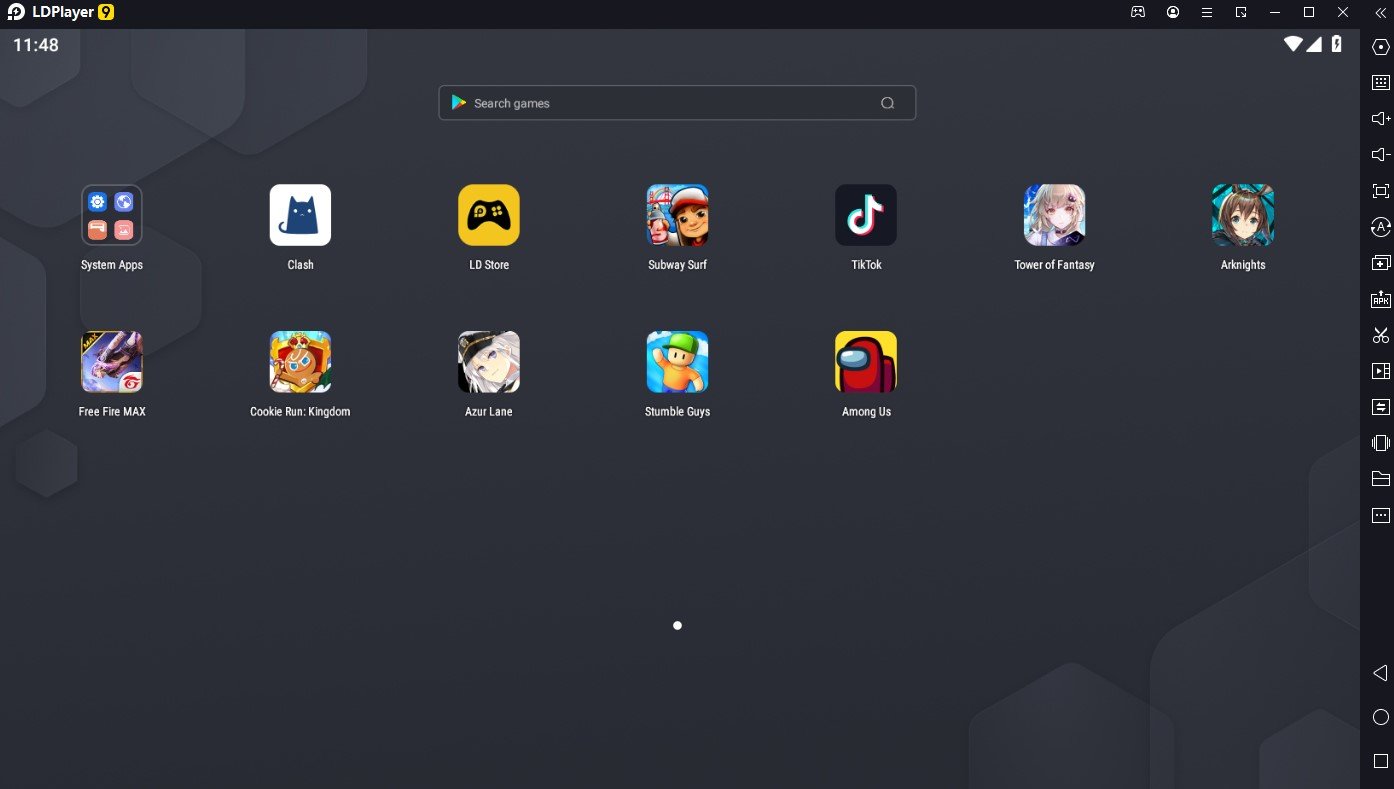
    LDPlayer Android emulator interface
    LDPlayer interface screenshot; actual smoothness depends on game, settings, and PC hardware.
    A quick decision path
    STEP 1Observe the slowdown
    STEP 2Change one setting
    STEP 3Repeat the same scene

    Troubleshoot in an order that isolates the cause

    Start with a repeatable test: use the same game scene, keep the PC plugged in, and watch CPU, GPU, memory, and temperature. If only online matches lag while menus stay smooth, investigate the network before replacing the emulator. If all graphics stutter, lower resolution and effects before raising frame-rate targets.

    Options by task

    OptionGood fit whenKeep in mind
    BlueStacks 5Broad general game checksUse its current supported performance settings.
    LDPlayerComparing game-specific controls and settingsCheck current game compatibility before tuning.
    Google Play Games on PCA supported catalog gamePC compatibility and system requirements still apply.

    A practical setup check

    • Enable the product’s supported hardware acceleration and update the graphics driver from the PC or GPU maker.
    • Reduce resolution or graphics effects, then test the same scene again.
    • Close background downloads and overlays; use one instance and avoid allocating all system memory to the emulator.

    Common questions

    Should I always set the highest FPS?

    No. An unstable high target can feel worse than a lower steady frame rate, and the game or display may not support it.

    Does more allocated RAM always fix lag?

    No. CPU, graphics, thermal throttling, storage, and network can be the real cause.

    Sources for this guide

    I used the product or platform documentation below for compatibility and policy details. Check the linked source before making a setup decision, since support can change.

    Need the full comparison? Visit the emulator comparison for PC gaming. For a related setup, read Low-end PC limitations and Memory pressure explained.

  • Best Fastest Loading Android Emulator

    When it comes to fast loading Android emulators, there are several options available. Some of the best and fastest loading Android emulators include:

    1. BlueStacks: BlueStacks is a popular and widely used Android emulator that is known for its fast loading times. It uses a proprietary technology called LayerCake, which allows it to run Android apps on your PC or Mac without the need for an actual Android device.
    2. NoxPlayer: NoxPlayer is another fast loading Android emulator that is designed to work well with games and other resource-intensive apps. It uses a proprietary technology called Nox App Player, which allows it to run Android apps on your PC or Mac without the need for an actual Android device.
    3. LDPlayer: LDPlayer is a great Android emulator that is designed to work well with games and other resource-intensive apps. It has a high-performance engine that can handle even the most demanding games, and also has a fast loading times.
    4. Memu: Memu is an Android emulator that uses a high-performance engine that can handle even the most demanding games, and also has a fast loading times.
    5. GameLoop: GameLoop (formerly Tencent Gaming Buddy) is an Android emulator specifically designed for gaming, which is equipped with a high-performance engine that can handle even the most demanding games, and also has a fast loading times.
    6. Phoenix OS: Phoenix OS is an Android-based operating system that can be run as an emulator on Windows and Linux. it has a fast loading times because it runs on native system rather than virtualization.

    In conclusion, these emulators are known for their fast loading times, which makes them suitable for running resource-intensive apps and games. However, the performance of these emulators will depend on the hardware of your computer, so be sure to check the system requirements before installing them.

    Explore more Android emulators with super unique features:

  • Best Android Emulator with Super Powers

    There are several Android emulators that offer advanced features and capabilities, making them suitable for power users. Some of the best Android emulators with superpowers include:

    1. BlueStacks: BlueStacks is a popular Android emulator that offers advanced features such as key-mapping, multi-instance support, and the ability to run multiple apps simultaneously. It also has a built-in macro recorder that allows you to automate repetitive tasks.
    2. NoxPlayer: NoxPlayer is another powerful Android emulator that offers advanced features such as key-mapping, multi-instance support, and the ability to run multiple apps simultaneously. It also has a built-in macro recorder that allows you to automate repetitive tasks.
    3. LDPlayer: LDPlayer is a great Android emulator that is designed to work well with games and other resource-intensive apps. It is equipped with a high-performance engine that can handle even the most demanding games, and also supports advanced features such as key-mapping and multi-instance support.
    4. Memu: Memu is an Android emulator that offers advanced features such as key-mapping, multi-instance support, and the ability to run multiple apps simultaneously. It is also equipped with a high-performance engine that can handle even the most demanding games.
    5. GameLoop: GameLoop (formerly Tencent Gaming Buddy) is an Android emulator specifically designed for gaming, which is equipped with a high-performance engine that can handle even the most demanding games. It also supports advanced features such as key-mapping and multi-instance support.
    6. Phoenix OS: Phoenix OS is an Android-based operating system that can be run as an emulator on Windows and Linux. it has advanced features like multi-window, mouse and keyboard support, and a taskbar.

    In conclusion, these emulators offer advanced features such as key-mapping, multi-instance support, and the ability to run multiple apps simultaneously, making them suitable for power users who want to run resource-intensive apps or automate repetitive tasks. It’s worth noting that the performance of these emulators will depend on the hardware of your computer.

    Explore more Android emulators with super unique features:

  • Best Android Emulator for TikTok

    When it comes to running TikTok on your PC or Mac, there are several Android emulators that are suitable. The following are some of the best Android emulators for TikTok:

    1. BlueStacks: BlueStacks is one of the most popular and widely used Android emulators for TikTok. It allows you to run TikTok on your PC or Mac and also supports other Android apps.
    2. NoxPlayer: NoxPlayer is another popular Android emulator that is designed to work well with TikTok. It offers a wide range of features and allows you to customize the control scheme, and also supports other Android apps.
    3. LDPlayer: LDPlayer is a great Android emulator that is designed to work well with TikTok. It offers a wide range of features and allows you to customize the control scheme, and also supports other Android apps.
    4. Memu: Memu is a great Android emulator that is designed to work well with TikTok. It offers a wide range of features and allows you to customize the control scheme, and also supports other Android apps.
    5. GameLoop: GameLoop (formerly Tencent Gaming Buddy) is an Android emulator specifically designed for gaming, but it also supports TikTok and other android apps.
    6. Phoenix OS: Phoenix OS is an Android-based operating system that can be run as an emulator on Windows and Linux. It is designed to work well with TikTok and other android apps.
    7. MEmu: MEmu is a great Android emulator that is designed to work well with TikTok. It offers a wide range of features and allows you to customize the control scheme, and also supports other Android apps.
    8. AndY Android Emulator: AndY Android Emulator is another great Android emulator that is designed to work well with TikTok. It offers a wide range of features and allows you to customize the control scheme, and also supports other Android apps.
    9. Genymotion: Genymotion is a fast and lightweight android emulator that is suitable for running TikTok and other android apps. It is a great option for developers and testers who want to test their apps on a variety of devices.

    In conclusion, these are some of the best Android emulators for running TikTok on your PC or Mac. Each of these emulators offers a wide range of features and is designed to work well with TikTok, so you can experience a smooth, lag-free experience while running TikTok on your PC or Mac. Some emulators may work better with specific apps, and you should check the system requirements of the emulator before installing it.

    Related Android emulator reading

    See the full Android emulator guide for recommendations across gaming, app testing and operating systems.

    Related: all Android emulator articles.

  • Best Android Emulator for WhatsApp

    When it comes to running WhatsApp on your PC or Mac, there are several Android emulators that are suitable. The following are some of the best Android emulators for WhatsApp:

    1. BlueStacks: BlueStacks is one of the most popular and widely used Android emulators for WhatsApp. It allows you to run WhatsApp on your PC or Mac and also supports other Android apps.
    2. NoxPlayer: NoxPlayer is another popular Android emulator that is designed to work well with WhatsApp. It offers a wide range of features and allows you to customize the control scheme, and also supports other Android apps.
    3. LDPlayer: LDPlayer is a great Android emulator that is designed to work well with WhatsApp. It offers a wide range of features and allows you to customize the control scheme, and also supports other Android apps.
    4. Memu: Memu is a great Android emulator that is designed to work well with WhatsApp. It offers a wide range of features and allows you to customize the control scheme, and also supports other Android apps.
    5. GameLoop: GameLoop (formerly Tencent Gaming Buddy) is an Android emulator specifically designed for gaming, but it also supports WhatsApp and other android apps.
    6. Phoenix OS: Phoenix OS is an Android-based operating system that can be run as an emulator on Windows and Linux. It is designed to work well with WhatsApp and other android apps.
    7. MEmu: MEmu is a great Android emulator that is designed to work well with WhatsApp. It offers a wide range of features and allows you to customize the control scheme, and also supports other Android apps.
    8. AndY Android Emulator: AndY Android Emulator is another great Android emulator that is designed to work well with WhatsApp. It offers a wide range of features and allows you to customize the control scheme, and also supports other Android apps.

    In conclusion, these are some of the best Android emulators for running WhatsApp on your PC or Mac. Each of these emulators offers a wide range of features and is designed to work well with WhatsApp, so you can experience a smooth, lag-free experience while running WhatsApp on your PC or Mac. Some emulators may work better with specific apps, and you should check the system requirements of the emulator before installing it.

    Related Android emulator reading

    See the full Android emulator guide for recommendations across gaming, app testing and operating systems.

    Related: all Android emulator articles.

  • Best Android Emulator for Apps: Testing vs. Everyday Use

    Best Android Emulator for Apps: Testing vs. Everyday Use

    The best Android emulator for an app depends on what “run” means. If you want to test an app you are building, Android Studio’s Emulator is the right starting point. If you want to use consumer apps on a computer, BlueStacks is a more approachable option, but it cannot promise that every app will work. App developers, games and services may restrict emulator use or require phone hardware that a virtual device does not reproduce.

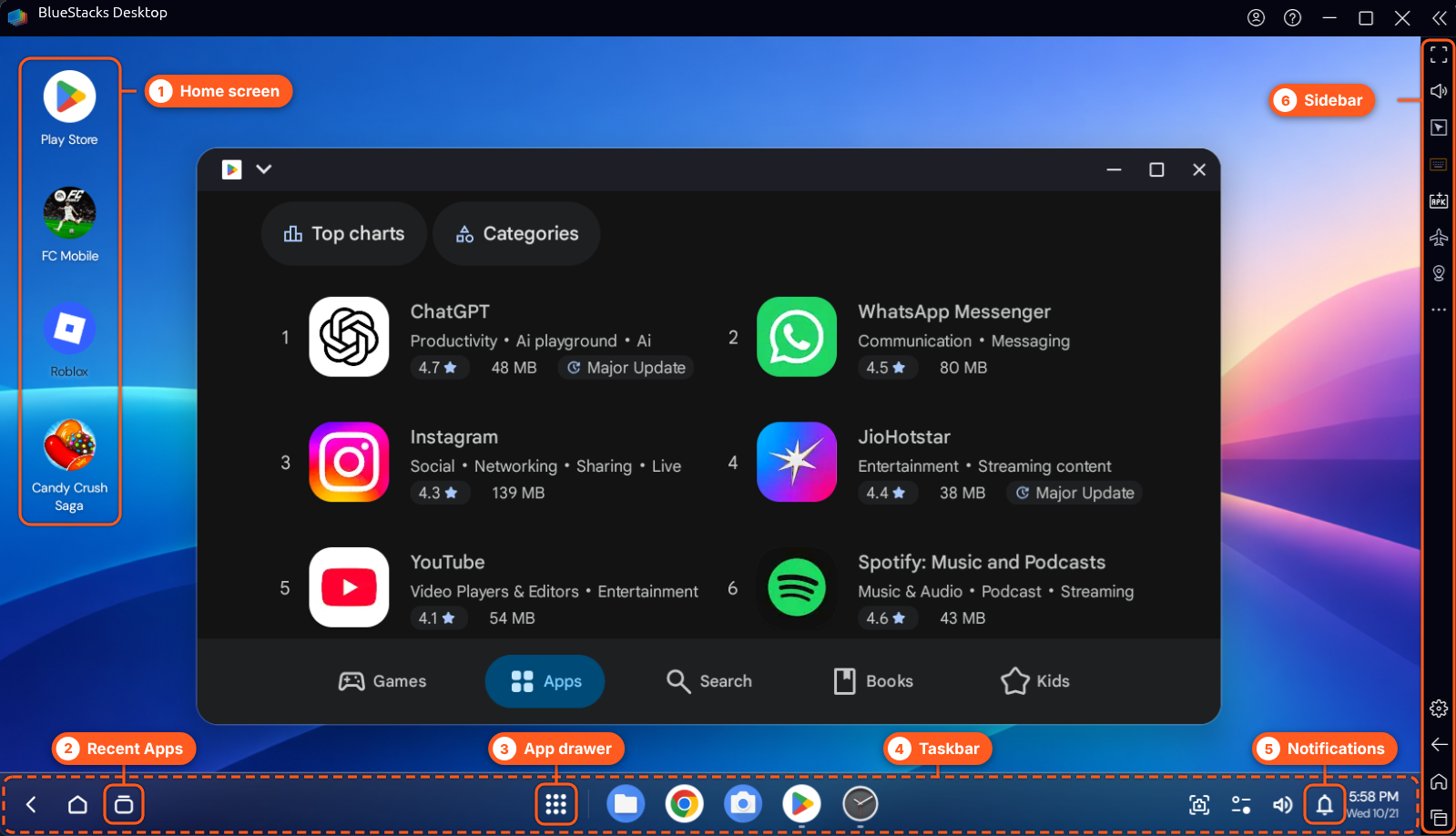
    BlueStacks desktop interface running Android apps
    BlueStacks’ desktop interface is an example of a consumer-focused Android player; app availability and compatibility vary.

    Choose by task

    For app development and testing: Android Studio Emulator

    Android Studio lets developers create Android Virtual Devices with different screen sizes, API levels and device profiles, then run and debug an app from the same development environment. It supports testing common conditions such as location, rotation and network behaviour. This is the most useful option when you need repeatable test configurations and access to Android debugging tools.

    For using Android apps on a computer: BlueStacks

    BlueStacks is built for desktop use and is designed to make supported Android apps and games easier to launch with keyboard, mouse or controller input. It is a practical first trial for casual use, but it is not a substitute for an Android phone. Some apps may be unavailable, require Google Play certification, depend on sensors or phone services, or block virtual devices.

    For games with their own PC client: check the publisher

    Some mobile games have official PC clients or named emulator partners. Those may provide a more predictable experience than a general-purpose Android player. Check the game publisher’s current support page and terms before installing a third-party emulator, particularly for games with anti-cheat or competitive matchmaking.

    Why compatibility varies

    Android apps can depend on a particular Android API, processor architecture, Google Play services, hardware sensors, camera behaviour, secure device checks or mobile network features. A virtual phone may reproduce some of these features and approximate others, but not every app treats it as a real device. A successful install does not guarantee that sign-in, payments, notifications or protected media will work.

    Do not assume that an emulator can bypass an app’s device requirements or account protections. If an app says it requires a supported phone, use a compatible device or contact the app developer. Avoid downloads that promise to unlock blocked features or ask you to disable security protections.

    A safe setup checklist

    • Download the emulator from the project’s official site or a trusted app store.
    • Install apps through the publisher’s official listing when available; check the publisher name before signing in.
    • Review the emulator’s permissions, bundled offers and account prompts.
    • Use a separate test account for app development and avoid entering sensitive credentials into an emulator you do not trust.
    • Test the exact app and workflow you need before relying on it.

    Which option should you choose?

    For a developer building an Android app, use Android Studio’s Emulator and test on at least one physical device before release. For casual app use or Android games on a computer, try BlueStacks and check the individual app’s support. For a game with an official PC client, compare that with the emulator route. Our main Android emulator guide compares the broader options; developers can continue to the developer emulator guide.

    Official references: Android Emulator documentation and BlueStacks.

  • Best Android Emulator for Playing Games on PC

    Best Android Emulator for Playing Games on PC

    The best way to play an Android game on a PC starts with the game’s own support. Some titles have a PC-ready catalog listing; others may run in a general Android emulator but can have different rules or compatibility. Check Google Play Games on PC first for a supported title. For broader Android game access, compare BlueStacks 5 and LDPlayer. Use GameLoop when the game appears in its current catalog, and verify the publisher’s emulator policy.

    BlueStacks Android player interface
    BlueStacks 5 app player screenshot; compatibility depends on the specific game.
    A quick decision path
    STEP 1Find the PC catalog entry
    STEP 2Check publisher support
    STEP 3Choose input method

    A quick route to the right game setup

    Google Play Games on PC is a curated game service, not a full Android phone environment. General emulators offer a wider Android-style setup, but the game still decides how it handles keyboard input, anti-cheat, matchmaking, and updates. These distinctions matter more than a generic “best emulator” label.

    Options by task

    OptionGood fit whenKeep in mind
    Google Play Games on PCA game in Google’s supported listIt does not install arbitrary Android apps.
    BlueStacks 5General Android games and appsCheck per-game compatibility and rules.
    LDPlayerGaming-focused alternativeA different control and compatibility setup.
    GameLoopTitles it currently listsCatalog-specific rather than universal.

    A practical setup check

    • Confirm the exact game is available in the PC catalog or the emulator’s official game center.
    • Read the publisher’s support or fair-play rules for emulator use.
    • Try one supported installation route and verify that updates come from the official source.

    Common questions

    Can any Android game run in an emulator?

    No. Some games are unavailable, use incompatible graphics or services, or restrict emulator play.

    Is Google Play Games a general emulator?

    No. It runs the PC-compatible titles in its catalog rather than arbitrary Android apps.

    Sources for this guide

    I used the product or platform documentation below for compatibility and policy details. Check the linked source before making a setup decision, since support can change.

    Related guides: Start with the full PC gaming comparison, then compare What gamers should compare and Call of Duty: Mobile support details.

  • Best Android Emulator for Intel GPUs

    An Intel GPU, or Graphics Processing Unit, is a specialized processor designed to handle the complex calculations required for rendering graphics. Intel GPUs are integrated into the CPU, and are commonly found in laptops and desktops.

    There are several types of Android emulators that are suitable for use with Intel GPUs. Some of the most popular include:

    1. BlueStacks: BlueStacks is one of the most popular Android emulators on the market. It is designed to work well with Intel GPUs and provides a smooth, lag-free experience.
    2. NoxPlayer: NoxPlayer is a powerful Android emulator that offers a wide range of features, including support for Intel GPUs. It also supports multiple accounts and the ability to run multiple instances of the same app.
    3. LDPlayer: LDPlayer is another popular Android emulator that is designed to work well with Intel GPUs. It offers a wide range of features, including support for multiple accounts and the ability to run multiple instances of the same app.
    4. Memu: Memu is another popular Android emulator that is designed to work well with Intel GPUs. It offers a wide range of features, including support for multiple accounts and the ability to run multiple instances of the same app.
    5. Android Studio: Android Studio is an Android development environment that includes an emulator. It is designed to work well with Intel GPUs and offers a wide range of features, including support for multiple accounts and the ability to run multiple instances of the same app.
    6. Genymotion: Genymotion is an Android emulator that is designed to work well with Intel GPUs. It offers a wide range of features, including support for multiple accounts and the ability to run multiple instances of the same app.
    7. Bliss OS: Bliss OS is an open-source Android emulator that is designed to work well with Intel GPUs. It offers a wide range of features, including support for multiple accounts and the ability to run multiple instances of the same app.
    8. Phoenix OS: Phoenix OS is an Android-based operating system that can be run as an emulator on Windows and Linux. It is designed to work well with Intel GPUs and offers a wide range of features.
    9. MEmu: MEmu is another popular Android emulator that is designed to work well with Intel GPUs. It offers a wide range of features, including support for multiple accounts and the ability to run multiple instances of the same app.
    10. Droid4X: Droid4X is an Android emulator that is designed to work well with Intel GPUs. It offers a wide range of features, including support for multiple accounts and the ability to run multiple instances of the same app.
    11. KoPlayer: KoPlayer is an Android emulator that is designed to work well with Intel GPUs. It offers a wide range of features, including support for multiple accounts and the ability to run multiple instances of the same app.
    12. Remix OS Player: Remix OS Player is an Android emulator that is designed to work well with Intel GPUs. It offers a wide range of features, including support for multiple accounts and the ability to run multiple instances of the same app.

    In conclusion, these are the 12 best Android emulators for Intel GPUs. Each of these emulators offers a wide range of features and is designed to work well with Intel GPUs, so you can experience a smooth, lag-free experience. You can choose the one that best suits your needs and enjoy running your favorite mobile apps and games on your PC or Mac. It’s worth noting that some emulators may work better with a specific version of Intel GPU, you should check the system requirements of the emulator before installing it.

    Related Android emulator reading

    See the full Android emulator guide for recommendations across gaming, app testing and operating systems.

    Related: RAM and performance guide.

  • Best Android Emulator for NVIDIA GPUs

    Android emulators are a great way to run mobile apps and games on your PC or Mac. They allow you to experience the full range of features and functionality of an Android device, without having to actually own one. However, not all emulators are created equal, and some are better suited to certain hardware configurations than others. In this article, we will be discussing the 5 best Android emulators for NVIDIA GPUs.

    1. BlueStacks: BlueStacks is one of the most popular Android emulators on the market. It is designed to work well with NVIDIA GPUs, and provides a smooth, lag-free experience.
    2. NoxPlayer: NoxPlayer is a powerful Android emulator that offers a wide range of features, including support for NVIDIA GPUs. It also supports multiple accounts and the ability to run multiple instances of the same app.
    3. LDPlayer: LDPlayer is another popular Android emulator that is designed to work well with NVIDIA GPUs. It offers a wide range of features, including support for multiple accounts and the ability to run multiple instances of the same app.
    4. Memu: Memu is another popular Android emulator that is designed to work well with NVIDIA GPUs. It offers a wide range of features, including support for multiple accounts and the ability to run multiple instances of the same app.
    5. Android Studio: Android Studio is an Android development environment that includes an emulator. It is designed to work well with NVIDIA GPUs and offers a wide range of features, including support for multiple accounts and the ability to run multiple instances of the same app.

    In conclusion, these are the 5 best Android emulators for NVIDIA GPUs. Each of these emulators offers a wide range of features and is designed to work well with NVIDIA GPUs, so you can experience a smooth, lag-free experience. You can choose the one that best suits your needs and enjoy running your favorite mobile apps and games on your PC or Mac. It’s worth noting that some emulators may work better with a specific version of NVIDIA GPU, you should check the system requirements of the emulator before installing it.

    Related Android emulator reading

    See the full Android emulator guide for recommendations across gaming, app testing and operating systems.

    Related: RAM and performance guide.

  • Best Android Emulator for AMD GPUs

    Android emulators are a great way to run mobile apps and games on your PC or Mac. They allow you to experience the full range of features and functionality of an Android device, without having to actually own one. However, not all emulators are created equal, and some are better suited to certain hardware configurations than others. In this article, we will be discussing the 7 best Android emulators for AMD GPUs.

    1. BlueStacks: BlueStacks is one of the most popular Android emulators on the market. It is designed to work well with AMD GPUs, and provides a smooth, lag-free experience.
    2. LDPlayer: LDPlayer is another popular Android emulator that is designed to work well with AMD GPUs. It offers a wide range of features, including support for multiple accounts and the ability to run multiple instances of the same app.
    3. NoxPlayer: NoxPlayer is a powerful Android emulator that offers a wide range of features, including support for AMD GPUs. It also supports multiple accounts and the ability to run multiple instances of the same app.
    4. Memu: Memu is another popular Android emulator that is designed to work well with AMD GPUs. It offers a wide range of features, including support for multiple accounts and the ability to run multiple instances of the same app.
    5. Android Studio: Android Studio is an Android development environment that includes an emulator. It is designed to work well with AMD GPUs and offers a wide range of features, including support for multiple accounts and the ability to run multiple instances of the same app.
    6. Genymotion: Genymotion is an Android emulator that is designed to work well with AMD GPUs. It offers a wide range of features, including support for multiple accounts and the ability to run multiple instances of the same app.
    7. Bliss OS: Bliss OS is an open-source Android emulator that is designed to work well with AMD GPUs. It offers a wide range of features, including support for multiple accounts and the ability to run multiple instances of the same app.

    In conclusion, these are the 7 best Android emulators for AMD GPUs. Each of these emulators offers a wide range of features and is designed to work well with AMD GPUs, so you can experience a smooth, lag-free experience. You can choose the one that best suits your needs and enjoy running your favorite mobile apps and games on your PC or Mac.

    Related Android emulator reading

    For the complete comparison across gaming, development and desktop use, see our Android emulator guide.

    Related: RAM and performance guide.