Tag: Best Android Emulator

Recommendations and setup guides for Android emulators. Choose by operating system and intended use, then confirm current app compatibility, system requirements and official downloads.

  • Best Android Emulator with Root Access (Pre-Rooted)

    Here are a few options for Android emulators with pre-rooted access:

    1. BlueStacks: BlueStacks is one of the most popular Android emulators available. It has a feature called “BlueStacks App Player” which allows users to run multiple apps at once, making it easy to multitask. Additionally, it has pre-rooted access which allows users to access the root file system and make system-level changes.
    2. NoxPlayer: NoxPlayer is another popular Android emulator that has pre-rooted access which allows users to access the root file system and make system-level changes.
    3. Genymotion: Genymotion is an Android emulator that is specifically designed for app developers. It has a pre-rooted version that allows users to access the root file system and make system-level changes.
    4. LDPlayer: LDPlayer is an Android emulator that has pre-rooted access which allows users to access the root file system and make system-level changes.
    5. MEmu: MEmu has pre-rooted access which allows users to access the root file system and make system-level changes.

    Note that having root access allows you to have more control over the system and access to features that are not available to normal users. It also allows users to make system-level changes and install apps that would not be possible without root access. However, it also poses a higher risk of system instability and security vulnerabilities.

    It’s worth to mention that, these emulators are pre-rooted, but it’s important to understand that having root access can also cause instability and security issues, so it is important to be careful when using it, and only use it for legitimate purposes.

    Explore more Android emulators with special features:

  • Android Emulators with Keyboard and Mouse Mapping

    Android Emulators with Keyboard and Mouse Mapping

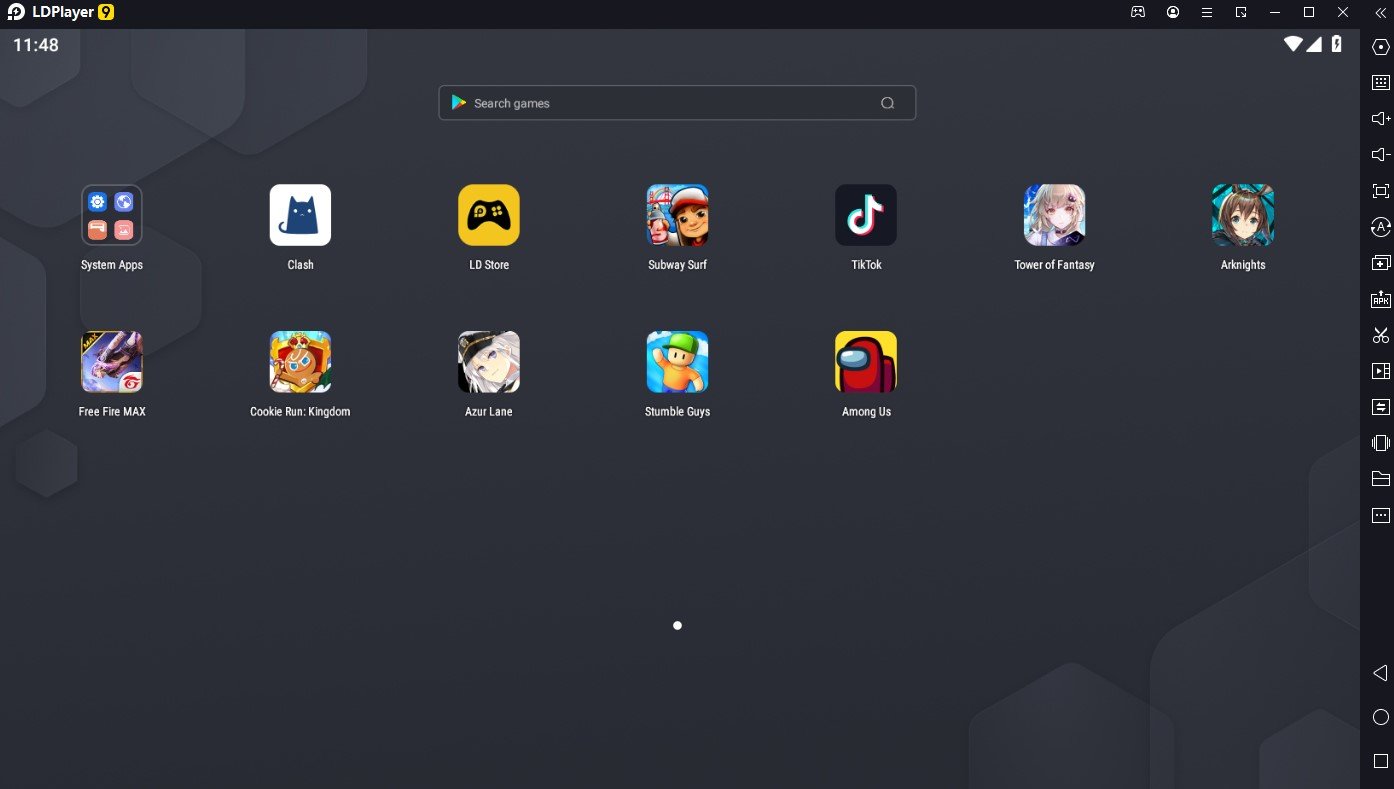
    Keyboard mapping translates PC keys into touch gestures. It is useful for games designed around touch controls, but a preset is only a starting point: layouts can change when the game updates or when the screen resolution changes. BlueStacks 5 and LDPlayer offer configurable game controls; GameLoop provides mappings for supported catalog titles. Choose the product that supports your game, then inspect and test the map instead of assuming every preset is current.

    LDPlayer Android emulator interface
    LDPlayer interface screenshot; the control editor can differ from this interface view.
    A quick decision path
    STEP 1Map key to touch target
    STEP 2Check current game HUD
    STEP 3Practice before competition

    Treat presets as editable controls, not guarantees

    A good control profile should match the game’s current on-screen buttons and leave the mouse available for camera or aiming. When a game adds a new menu or changes its HUD, an old profile can send inputs to the wrong place. Game publisher rules also matter: automation and macros may be treated differently from ordinary key mapping.

    Options by task

    OptionGood fit whenKeep in mind
    BlueStacks 5Editable key controls for supported gamesReview the profile after game updates.
    LDPlayerKeyboard control configurationThe exact editor and presets vary by release.
    GameLoopGames listed in its game centerDo not assume its controls apply to every Android game.

    A practical setup check

    • Open the emulator’s control editor and compare each key with the game’s current touch target.
    • Test movement, aiming, menus, and text entry outside a ranked match.
    • Save a separate profile before adjusting controls, so you can return to the original layout.

    Common questions

    Do emulators have a preset for every game?

    No. Presets vary by emulator, game version, region, and screen layout.

    Are macros the same as key mapping?

    No. Key mapping translates a key to an input; macros can automate sequences. Check the game’s rules before using automation.

    Sources for this guide

    I used the product or platform documentation below for compatibility and policy details. Check the linked source before making a setup decision, since support can change.

    For the wider view, see the broader gaming emulator comparison. This guide also connects to Gaming emulator choices.

  • Best Android Emulators with Special Features

    There are many Android emulators available, each with their own set of features. Here are a few options for Android emulators with special features:

    1. BlueStacks: BlueStacks is one of the most popular Android emulators available. It has a feature called “BlueStacks App Player” which allows users to run multiple apps at once, making it easy to multitask.
    2. NoxPlayer: NoxPlayer is another popular Android emulator that has a built-in macro recorder and player, which can be used to automate tasks and improve gaming performance.
    3. LDPlayer: LDPlayer is an Android emulator that has a feature called “Keyboard Control” which allows users to customize keyboard controls for games and apps.
    4. MEmu: MEmu has a feature called “Multi-MEmu” which allows users to create multiple instances of the emulator, each with their own settings and apps.
    5. Gameloop: Gameloop, previously known as Tencent Gaming Buddy, is an Android emulator developed by Tencent Games, it has the feature called “Key-mapping” which allows users to customize the keyboard controls for games and apps, and also it has the feature of “Multi-instance” which allows users to run multiple games at the same time.

    These are some of the emulators that have special features that can be beneficial for different types of users. These features can help improve performance, automate tasks, and customize controls. They are suitable for running games and other apps, but they are specifically optimized for gaming experience and multitasking.

    Explore more Android emulators with special features:

  • Best Android Emulator with CPU Virtualization

    CPU virtualization is a technology that allows a single physical CPU to act as multiple virtual CPUs. It is commonly used in virtualization software and emulators to improve performance. Here are a few options for Android emulators that require CPU virtualization:

    1. BlueStacks: BlueStacks is one of the most popular Android emulators available. It requires CPU virtualization to run, which allows it to provide a smooth and high-performance gaming experience.
    2. NoxPlayer: NoxPlayer is another popular Android emulator that requires CPU virtualization. It is designed for gaming and provides a smooth and high-performance gaming experience.
    3. LDPlayer: LDPlayer is an Android emulator that is specifically designed for gaming and requires CPU virtualization to run. It provides a smooth and high-performance gaming experience.
    4. MEmu: MEmu is another Android emulator that is specifically designed for gaming and requires CPU virtualization to run. It provides a smooth and high-performance gaming experience.
    5. Gameloop: Gameloop, previously known as Tencent Gaming Buddy, is an Android emulator developed by Tencent Games. It requires CPU virtualization to run, which allows it to provide a smooth and high-performance gaming experience.

    These emulators are specifically optimized for gaming, ensuring that the games are run smoothly and efficiently. They require CPU virtualization to run, which means that they are more demanding on system resources, but also provide a better gaming experience. These emulators are also suitable for running other apps, but they are specifically optimized for gaming experience.

    Explore more Android emulators with special features:

  • Best Android Emulator without CPU Virtualization

    CPU virtualization is a technology that allows a single physical CPU to act as multiple virtual CPUs. It is commonly used in virtualization software and emulators to improve performance. However, some users may prefer to use an emulator without CPU virtualization for various reasons. Here are a few options for Android emulators that do not require CPU virtualization:

    1. Genymotion: Genymotion is a popular Android emulator that does not require CPU virtualization. It uses the x86 architecture, which allows it to run faster and more efficiently than other emulators that use the ARM architecture.
    2. Android-x86: Android-x86 is an open-source project that allows users to run Android on a PC. It does not require CPU virtualization and can be run on both x86 and x64 architecture.
    3. Bliss OS: Bliss OS is an open-source Android operating system that can be run on a PC. It does not require CPU virtualization and can be run on both x86 and x64 architecture.
    4. Phoenix OS: Phoenix OS is an Android-based operating system that can be run on a PC. It does not require CPU virtualization and can be run on both x86 and x64 architecture.
    5. PrimeOS: PrimeOS is an Android-based operating system that can be run on a PC. It does not require CPU virtualization and can be run on both x86 and x64 architecture.

    These emulators do not require CPU virtualization to run, which means that they are less demanding on system resources, and are generally more stable. They are also suitable for running other apps, but they are not specifically optimized for gaming experience.

    Explore more Android emulators with special features:

  • Best Android Emulator with Anti Cheat Engine

    Anti-cheat engines are designed to detect and prevent cheating in online games. Not many android emulators have built-in anti-cheat engines, but some popular ones that have an anti-cheat engine include:

    1. Gameloop: Gameloop, previously known as Tencent Gaming Buddy, is an Android emulator developed by Tencent Games. It has a built-in anti-cheat engine which is specifically designed to detect and prevent cheating in PUBG Mobile.
    2. BlueStacks: BlueStacks is one of the most popular Android emulators available. It has a built-in anti-cheat engine which is specifically designed to detect and prevent cheating in PUBG Mobile.
    3. NoxPlayer: NoxPlayer has a built-in anti-cheat engine which is specifically designed to detect and prevent cheating in PUBG Mobile.
    4. LDPlayer: LDPlayer also has a built-in anti-cheat engine which is specifically designed to detect and prevent cheating in PUBG Mobile.
    5. MEmu: MEmu also has a built-in anti-cheat engine which is specifically designed to detect and prevent cheating in PUBG Mobile.

    These emulators with anti-cheat engine technology are specifically optimized for gaming, ensuring that the games are fair and enjoyable. These emulators are great options for gamers looking to play mobile games on their PC, and especially for PUBG mobile that is known for having a lot of cheaters. It’s worth noting that these emulators are also suitable for running other apps, but they are specifically optimized for PUBG mobile gaming experience.

    Explore more Android emulators with special features:

  • Best Android Emulators with Titan Engine

    Titan Engine is a technology developed by Tencent Games, the company behind the popular game PUBG Mobile. It is designed to improve the performance and stability of Android emulators. The Titan Engine is integrated into several popular Android emulators, including:

    1. Gameloop: Gameloop, previously known as Tencent Gaming Buddy, is an Android emulator developed by Tencent Games. It is specifically designed for gaming and comes with the Titan Engine built-in.
    2. LDPlayer: LDPlayer is an Android emulator that is optimized for gaming. It comes with the Titan Engine integrated, which allows for smoother and more stable performance.
    3. BlueStacks: BlueStacks is one of the most popular Android emulators available. It has recently added the Titan Engine to its latest version, which improves the performance and stability of the emulator.
    4. MEmu: MEmu is another popular Android emulator that has recently added the Titan Engine. It offers high performance and stability for gaming and other apps.
    5. NoxPlayer: NoxPlayer is another Android emulator that features the Titan Engine for improved performance and stability.

    These emulators with Titan Engine technology are specifically optimized for gaming, ensuring smoother and more stable performance. They are great options for gamers looking to play mobile games on their PC. It’s worth noting that these emulators are also suitable for running other apps, but they are specifically optimized for gaming experience.

    Explore more Android emulators with special features:

  • Are There Portable Android Emulators You Can Run from USB?

    Are There Portable Android Emulators You Can Run from USB?

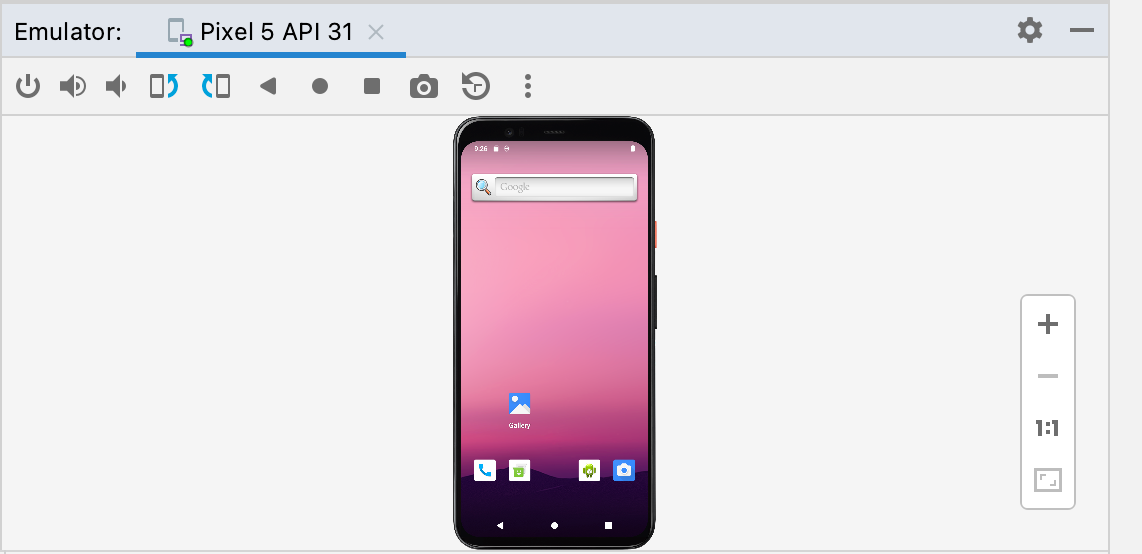
    A USB stick can carry an installer or project files, but that alone does not make an Android emulator portable. Emulators commonly install host components and store virtual-device data on the PC. Treat claims of fully portable BlueStacks, NoxPlayer, or LDPlayer builds cautiously unless the vendor documents that exact package. If you cannot install software on the host, use a managed cloud test device or a physical Android phone.

    Android Studio Emulator virtual device interface
    Android Studio Emulator interface; it illustrates a local virtual device, not a portable USB runtime.
    A quick decision path
    STEP 1Check official portability
    STEP 2Check host components
    STEP 3Protect device data

    What “portable” should mean before you download

    A genuinely portable app should run without installing host drivers or services, keep its configuration and data in the portable location, and clean up safely when removed. A normal emulator’s engine, Android system image, virtualization driver, and user data may live in different host folders. Copying its installer to USB does not meet that test.

    Options by task

    OptionGood fit whenKeep in mind
    Vendor-supported portable packageOnly if the emulator publisher documents itConfirm data location and host components.
    Android Studio command-line setupRepeatable development environmentsStill installs SDK and virtual-device components on a host.
    Cloud device sessionTesting when local installation is not allowedRequires network access and an account.

    A practical setup check

    • Check the vendor’s official documentation for an explicitly supported portable build.
    • Do not run repackaged “portable” installers from file-sharing sites, especially on a shared work or school computer.
    • For development teams, document the SDK and AVD setup or use a remote device service instead of passing one mutable emulator folder between PCs.

    Common questions

    Can I run BlueStacks from a USB drive without installing it?

    Do not assume so. Use only a portable build the publisher explicitly supports; a USB copy of the installer is not a portable runtime.

    What is safer on a locked-down PC?

    Use an approved remote test service or a physical phone rather than trying to bypass administrator controls.

    Sources for this guide

    I used the product or platform documentation below for compatibility and policy details. Check the linked source before making a setup decision, since support can change.

    Need the full comparison? Visit the full guide to local and remote emulators. For a related setup, read Browser and cloud Android testing and Android virtual-device images.

  • Best Fastest Android Emulator

    When it comes to fast Android emulators, several options are available. Some of the best fastest Android emulators include:

    1. BlueStacks: BlueStacks is a popular and widely used Android emulator that is known for its fast performance. It uses a proprietary technology called LayerCake, which allows it to run Android apps on your PC or Mac without the need for an actual Android device. It also has a built-in game control feature that allows you to customize the controls for different games.
    2. NoxPlayer: NoxPlayer is another Android emulator that is designed to work well with games and other resource-intensive apps. It uses a proprietary technology called Nox App Player, which allows it to run Android apps on your PC or Mac without the need for an actual Android device. It also has a built-in game control feature that allows you to customize the controls for different games.
    3. LDPlayer: LDPlayer is a great Android emulator that is designed to work well with games and other resource-intensive apps. It has a high-performance engine that can handle even the most demanding games, and also supports advanced features such as key-mapping and multi-instance support. It also allows you to customize the controls for different games.
    4. Phoenix OS: Phoenix OS is an Android-based operating system that can be run as an emulator on Windows and Linux. It can run games smoothly as it runs on native system rather than virtualization.
    5. GameLoop: GameLoop (formerly Tencent Gaming Buddy) is an Android emulator specifically designed for gaming, which is equipped with a high-performance engine that can handle even the most demanding games. It also allows you to customize the controls for different games, and fine-tune the graphics settings for optimal performance.
    6. Memu: Memu is an Android emulator that uses a high-performance engine that can handle even the most demanding games, and also supports advanced features such as key-mapping and multi-instance support. It also allows you to customize the controls for different games.

    In conclusion, these emulators are known for their high-performance engine that can handle even the most demanding games and resource-intensive apps, and also for their advanced features such as key-mapping, multi-instance support and customizable controls. However, the performance of these emulators will depend on the hardware of your computer, so be sure to check the system requirements before installing them.

    Explore more Android emulators with super unique features:

  • Best Smallest Android Emulator

    When it comes to small-sized Android emulators, several options are available. Some of the best smallest Android emulators include:

    1. Genymotion: Genymotion is a small-sized Android emulator that is designed for developers. It is lightweight, fast and easy to use, and comes with a variety of features such as GPS simulation, camera simulation and more.
    2. LDPlayer: LDPlayer is a great small-sized Android emulator that is designed for gaming. It has a high-performance engine that can handle even the most demanding games, and also has a small installation file size.
    3. BlueStacks Lite: BlueStacks Lite is a small-sized version of the popular BlueStacks Android emulator. It is designed for low-end computers and laptops, and has a small installation file size.
    4. MEmu Lite: MEmu Lite is a small-sized version of the popular MEmu Android emulator. It is designed for low-end computers and laptops, and has a small installation file size.
    5. Phoenix OS: Phoenix OS is a lightweight android-based operating system which can be run as an emulator on Windows and Linux. It has a small installation file size and also doesn’t require a virtual machine to run.
    6. Droid4X: Droid4X is a small-sized android emulator that is designed for gaming, it is lightweight and easy to use and also has a small installation file size.

    In conclusion, these emulators are known for their small installation file size, which makes them suitable for computers and laptops with limited storage. They also have a high-performance engine that can handle even the most demanding games, and easy to use interface. However, the performance of these emulators will depend on the hardware of your computer, so be sure to check the system requirements before installing them.

    Explore more Android emulators with super unique features: