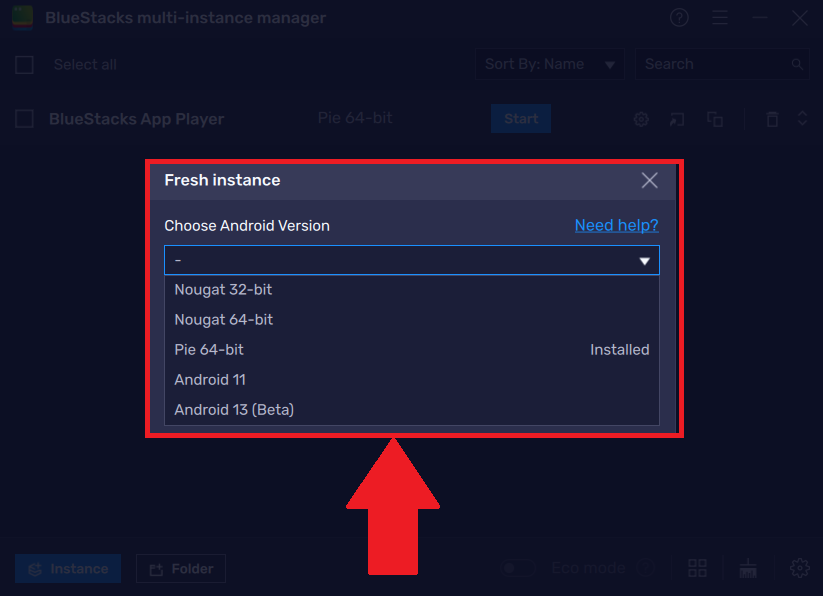
Recommendations and setup guides for Android emulators. Choose by operating system and intended use, then confirm current app compatibility, system requirements and official downloads.
Are you an Android enthusiast with a computer or device powered by an x64 (64-bit) processor? If so, you may be on the hunt for the best Android emulator for your system. However, finding a compatible emulator can be a challenge, as many emulators are designed to run on x86 (32-bit) processors. But don’t worry, we’ve done the research and compiled a list of the top Android emulators that are compatible with x64 (64-bit) processors.
In this blog post, we’ll be taking a closer look at the top Android emulators for x64 (64-bit) processors, including a comparison table with their pros and cons.
Here is a comparison table of the top Android emulators for x64 (64-bit) processors:
Emulator
Pros
Cons
BlueStacks
Widely popular and easy to use <br> Supports a wide range of x64 (64-bit) processors <br> Range of features including multi-app support and keyboard/mouse controls
Some users have reported performance issues
MEmu
Supports both AMD and Intel processors <br> Simple user interface <br> Designed to run smoothly,
Welcome to the ultimate guide to finding the best Android emulator for x86 (32-bit) processors!
If you’re an Android user with a computer or device powered by an x86 (32-bit) processor, you may look for a suitable emulator that can run smoothly on your system. However, finding a compatible emulator can be challenging, as many emulators are designed to run on 64-bit processors. But don’t worry, we’ve done the research and compiled a list of the top Android emulators that are compatible with x86 (32-bit) processors.
Here is a comparison table of the top Android emulators for x86 (32-bit) processors:
Emulator
Pros
Cons
MEmu
Supports both AMD and Intel processors <br> Simple user interface <br> Designed to run smoothly, even on low-end systems
Limited features compared to some other emulators
BlueStacks
Widely popular and easy to use <br> Supports a wide range of x86 (32-bit) processors <br> Range of features including multi-app support and keyboard/mouse controls
Some users have reported performance issues
LDPlayer
Optimized for gaming <br> Supports keyboard mapping and gamepad emulation <br> Allows for multiple instances for multiple games
May not be as feature-packed as some other emulators
Remix OS Player
Unique emulator that allows you to run Android apps on a Windows PC <br> Simple interface and easy to use
May not be as powerful as some other emulators
Andy Android Emulator
Free emulator that allows you to run Android apps on your desktop <br> Supports Google Play Services for access to a wide range of apps and games <br> Supports controller and keyboard mapping
Some users have reported stability issues
Now, let’s take a more detailed look at each emulator:
MEmu: MEmu is a top choice for x86 (32-bit) processor users due to its support for both AMD and Intel processors. It has a simple user interface and is designed to run smoothly, even on low-end systems. However, it does have limited features compared to some other emulators.
BlueStacks: BlueStacks is a widely popular emulator that is easy to use and supports a wide range of x86 (32-bit) processors. It has a range of features including multi-app support and keyboard/mouse controls. However, some users have reported performance issues with BlueStacks, so it may not be the best choice for those with low-end systems.
LDPlayer: LDPlayer is a fast and stable emulator that is specifically designed for gaming. It has support for keyboard mapping and gamepad emulation, as well as the ability to run multiple instances for multiple games. However, it may not be as feature-packed as some other emulators.
Remix OS Player: Remix OS Player is a unique emulator that allows you to run Android apps on a Windows PC. It has a simple interface and is designed to be easy to use, even for those new to Android emulation. However, it may not be as powerful as some other emulators.
Andy Android Emulator: Andy Android Emulator is a free emulator that allows you to run Android apps on your desktop. It has support for Google Play Services, allowing you to access a wide range of apps and games. It also has support for controller and keyboard mapping. However, some users have reported stability issues with Andy.
Best Android emulator for Apple chip M1, M1X, M2, M3, MX, etc.
Welcome to the ultimate guide to finding the best Android emulator for Apple chips!
If you’re an Android user with a device powered by an Apple chip, you may be interested in finding an emulator that can run smoothly on your system. However, finding a suitable emulator can be challenging, as many emulators are designed to run on computers with x86 processors. But don’t worry; we’ve done the research and compiled a list of the top Android emulators compatible with Apple chips.
Here is a comparison table of the top Android emulators for Apple chips:
Emulator
Pros
Cons
MEmu
Supports both AMD and Intel processors <br> Simple user interface <br> Designed to run smoothly, even on low-end systems
Limited features compared to some other emulators
BlueStacks
Widely popular and easy to use <br> Supports a wide range of Apple chips <br> Range of features including multi-app support and keyboard/mouse controls
Some users have reported performance issues
LDPlayer
Optimized for gaming Supports keyboard mapping and gamepad emulation Allows for multiple instances for multiple games
May not be as feature-packed as some other emulators
Remix OS Player
Unique emulator that allows you to run Android apps on a Windows PC <br> Simple interface and easy to use
May not be as powerful as some other emulators
Andy Android Emulator
Free emulator that allows you to run Android apps on your desktop <br> Supports Google Play Services for access to a wide range of apps and games <br> Supports controller and keyboard mapping
Some users have reported stability issues
Now, let’s take a more detailed look at each emulator:
MEmu: MEmu is a top choice for Apple chip users due to its support for both AMD and Intel processors. It has a simple user interface and is designed to run smoothly, even on low-end systems. However, it does have limited features compared to some other emulators.
BlueStacks: BlueStacks is a widely popular emulator that is easy to use and supports a wide range of Apple chips. It has a range of features including multi-app support and keyboard/mouse controls. However, some users have reported performance issues with BlueStacks, so it may not be the best choice for those with low-end systems.
LDPlayer: LDPlayer is a fast and stable emulator that is designed explicitly for gaming. It has support for keyboard mapping and gamepad emulation and the ability to run multiple instances for multiple games. However, it may not be as feature-packed as some other emulators.
Remix OS Player: Remix OS Player is a unique emulator that allows you to run Android apps on a Windows PC. It has a simple interface and is designed to be easy to use, even for those new to Android emulation. However, it may not be as powerful as some other emulators.
Andy Android Emulator: Andy Android Emulator is a free emulator that allows you to run Android apps on your desktop. It supports Google Play Services, allowing you to access various apps and games. It also has support for the controller and keyboard mapping. However, some users have reported stability issues with Andy.
Overall, these emulators are all great options for Apple chip users looking to run Android apps and games on their devices. Give them a try and see which one works best for you!
AMD PCs use the same basic principle as Intel PCs: the processor must support virtualization, the feature must be enabled, and the emulator must work with the configured Windows hypervisor. On AMD, look for SVM or AMD-V in firmware when hardware acceleration is unavailable. BlueStacks, Google Play Games on PC, and Android Studio serve different use cases; choose based on the app, game, and product requirements rather than CPU brand.
Consumer emulator interface; AMD-V and the host hypervisor determine acceleration compatibility.
A quick decision path
STEP 1Confirm AMD CPU support
STEP 2Enable SVM if needed
STEP 3Check Windows hypervisor
Check SVM and the hypervisor before changing emulators
Android’s hardware-acceleration guidance lists AMD-V on supported AMD processors. Laptop firmware may call the setting SVM. If the option is enabled but performance remains poor, check the hypervisor, graphics driver, and whether another virtualization product is running. Repeatedly changing settings without recording them makes troubleshooting harder.
Options by task
Option
Good fit when
Keep in mind
BlueStacks 5
Consumer games and apps
Confirm the supported hypervisor mode for your Windows setup.
Google Play Games on PC
Supported catalog games
Check its own PC requirements, including virtualization.
Android Studio Emulator
Developer device testing
Use AMD-V with a supported system image and host hypervisor.
A practical setup check
Record the processor model and Windows edition.
Enable SVM in firmware only if the emulator requires it and your CPU supports it.
Use the emulator’s documented Windows configuration; do not disable Hyper-V or security components unless the vendor specifically calls for it.
Common questions
Do AMD processors need a special Android emulator?
Usually no. Check whether your particular CPU and Windows configuration meet the selected emulator’s requirements.
Where is SVM enabled?
It is normally in the system firmware setup, but menu names vary by PC maker. Follow the computer manufacturer’s instructions.
Sources for this guide
I used the product or platform documentation below for compatibility and policy details. Check the linked source before making a setup decision, since support can change.
Most modern Intel PCs can run Android virtualization when the processor feature and Windows hypervisor are configured correctly. The Intel label alone does not tell you whether a particular emulator or game will run well. For gaming, choose a supported consumer emulator and enable Intel VT-x if required. For app development, Android Studio uses hardware acceleration with a matching system image. Check the exact CPU generation, graphics driver, and hypervisor setup.
BlueStacks 5 interface; processor compatibility depends on CPU features and emulator configuration.
A quick decision path
STEP 1CPU model
STEP 2VT-x enabled
STEP 3Hypervisor compatible
Intel VT-x is a compatibility check, not a speed rating
Android’s emulator acceleration depends on processor virtualization extensions and a compatible host hypervisor. On Windows, Windows Hypervisor Platform is the recommended route in Android’s documentation. A different emulator may have its own Hyper-V mode. Avoid switching off security and virtualization features blindly; follow the chosen product’s current instructions.
Options by task
Option
Good fit when
Keep in mind
BlueStacks 5
Consumer games and apps
Check which Hyper-V configuration matches your system.
Google Play Games on PC
Games in Google’s supported catalog
The catalog and system requirements determine compatibility.
Android Studio Emulator
Developer testing
Use a matching system image and supported hypervisor.
A practical setup check
Check the processor model rather than relying on “Intel Core” alone.
Look for Intel Virtualization Technology in firmware if acceleration is unavailable.
If one emulator conflicts with another virtual machine, test them separately and follow the vendor’s documented hypervisor mode.
Common questions
Does an Intel processor automatically make emulation fast?
No. CPU generation, core count, GPU, cooling, memory, and virtualization settings all affect the result.
Should I disable Hyper-V for every Android emulator?
No. Compatibility varies by product and version. Use the emulator vendor’s current setup instructions.
Sources for this guide
I used the product or platform documentation below for compatibility and policy details. Check the linked source before making a setup decision, since support can change.
Android emulators allow you to run Android apps and games on your computer, giving you the ability to use your favorite mobile apps on a larger screen. There are a variety of Android emulators available, but if you’re looking for the best and lightest option, here is a comparison of some of the top choices:
Emulator
Size (approx)
CPU/RAM Usage
BlueStacks
668 MB
High
NOX
556 MB
High
LDPlayer
401 MB
Moderate
MEmu
358 MB
Low
Genymotion
262 MB
Low
BlueStacks
BlueStacks is one of the most popular Android emulators, with over 200 million users worldwide. It has a simple and user-friendly interface, and it allows you to easily install and run Android apps and games on your computer.
Pros:
Wide range of supported apps and games
User-friendly interface
Good performance on high-end systems
Cons:
High CPU and RAM usage
May not work well on low-end systems
NOX
NOX is another popular Android emulator that is known for its stability and compatibility with a wide range of apps and games. It has a simple interface and offers various features such as keyboard mapping and gamepad support.
Pros:
Wide range of supported apps and games
Stable and reliable
Various features such as keyboard mapping and gamepad support
Cons:
High CPU and RAM usage
May not work well on low-end systems
LDPlayer
LDPlayer is a newer emulator that has gained popularity due to its lightweight nature and ability to run games smoothly. It has a moderate CPU and RAM usage, making it a good balance between performance and resource utilization.
Pros:
Lightweight and efficient
Good performance on both high and low-end systems
Various features such as keyboard mapping and gamepad support
Cons:
Relatively new, so it may not have as wide a range of supported apps and games as other emulators
MEmu
MEmu is a lightweight Android emulator that is specifically designed to be fast and efficient. It has a low impact on CPU and RAM usage, making it a good choice for low-end systems.
Pros:
Lightweight and efficient
Low impact on CPU and RAM usage
Good performance on low-end systems
Cons:
May not have as wide a range of supported apps and games as other emulators
Genymotion
Genymotion is a lightweight Android emulator that is specifically designed for developers. It offers a range of tools and features for testing and debugging Android apps, as well as support for a wide range of devices and Android versions.
Pros:
Lightweight and efficient
Low impact on CPU and RAM usage
Various tools and features for developers
Cons:
May not be as user-friendly as other emulators
May not have as wide a range of supported apps and games as other emulators
Ultimately, the best Android emulator for you will depend on your specific needs and the resources of your computer. If you have a high-end system, any of the above emulators should work well. If you have a lower-end system, MEmu and Genymotion are likely the best options to consider.
Explore more Android emulators with super unique features:
A small installer is not the same as a light-running emulator. To keep resource use low, limit simultaneous work, choose a modest screen configuration, and measure which part of the PC is actually busy. Start with a single emulator instance, close nonessential background tasks, lower resolution, and cap frame rate when available. If the host still struggles, use a physical Android phone or remote test session rather than an unofficial “lite” repack.
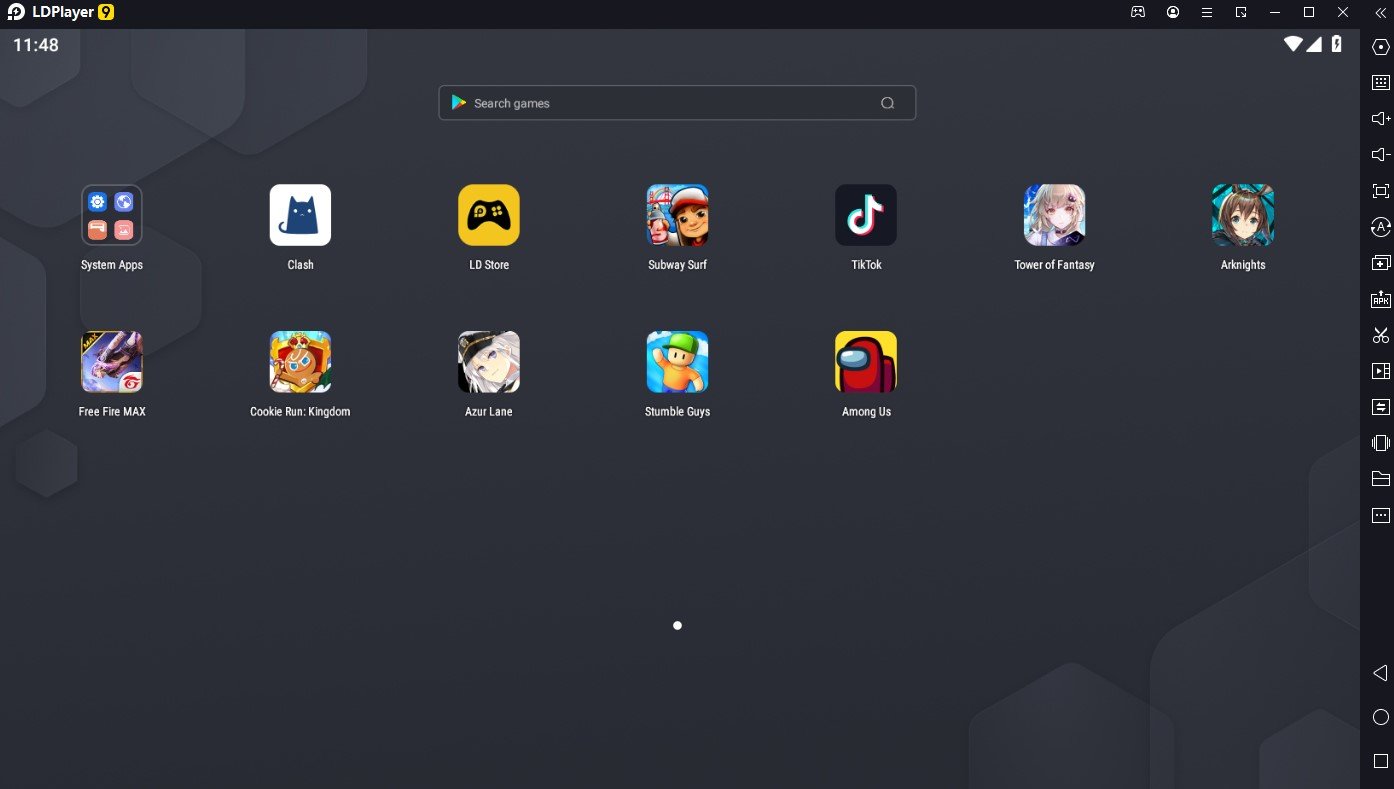
LDPlayer interface screenshot; resource use depends on workload and PC configuration.
A quick decision path
STEP 1Measure the busy part
STEP 2Change one setting
STEP 3Compare the result
Reduce the work the PC must do
Android emulation uses CPU, memory, graphics, and disk together. Lowering the resolution can reduce graphics load; closing other apps can free memory; using one instance limits duplicated Android processes. An SSD can improve loading, but it cannot replace missing memory or virtualization support.
Options by task
Option
Good fit when
Keep in mind
One consumer-emulator instance
A single app or game
Keep resolution and background workload modest.
Google Play Games on PC
A supported game with a curated install path
It still needs to meet its own PC requirements.
Physical Android phone
Testing on a constrained computer
Uses little host CPU but is less repeatable.
A practical setup check
Open Task Manager and note whether CPU, memory, GPU, or disk is saturated during the slowdown.
Test one emulator instance at default settings, then lower resolution or frame rate one step at a time.
Remove only apps you recognize and no longer need; do not add antivirus exclusions just because an emulator recommends a broad exception.
Common questions
Which Android emulator uses the least RAM?
There is no stable answer across versions and workloads. Measure one instance on your PC rather than trusting an unsupported universal ranking.
Are “lite” emulator installers safe?
Use vendor downloads only. Repacked installers may add unwanted software or omit important updates.
Sources for this guide
I used the product or platform documentation below for compatibility and policy details. Check the linked source before making a setup decision, since support can change.
On Linux, Android may run in a container, a development virtual device, or a remote cloud session. Those approaches solve different problems; the right one depends on desktop session, app requirements, and whether you need games or developer tools. Waydroid is a Linux-integrated Android environment for compatible setups. Android Studio Emulator is better for app development and testing. Neither should be described as a universal gaming emulator.
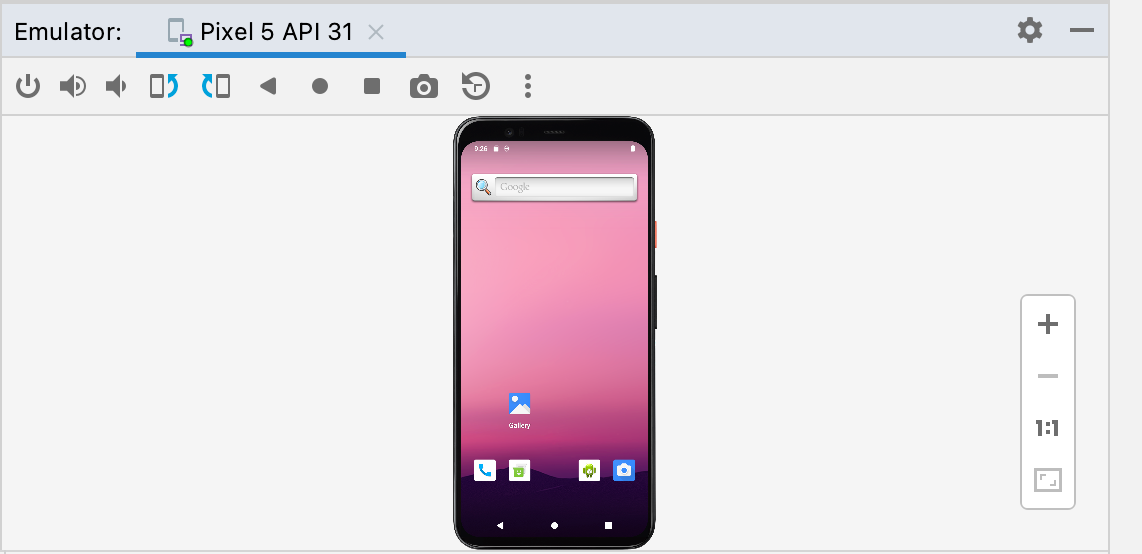
Android Studio Emulator interface for app testing; Waydroid is a separate Linux container-based option.
A quick decision path
STEP 1Linux container
STEP 2Developer AVD
STEP 3Remote test session
Waydroid and Android Studio are not the same kind of tool
Waydroid runs Android in a container and shares parts of the Linux host environment; its setup depends on the Linux distribution and desktop configuration. Android Studio runs configurable Android Virtual Devices with selectable system images. A cloud session can be useful when you cannot install either locally, but it adds network and service limitations.
Options by task
Option
Good fit when
Keep in mind
Waydroid
Android apps integrated with a compatible Linux desktop
Setup depends on distribution, session, and Google services.
Android Studio Emulator
Developer testing across device profiles and API levels
Resource-intensive compared with lightweight app use.
Cloud device service
Remote app checks without local setup
Network latency and device/service limits apply.
A practical setup check
Check the Waydroid installation guide for your distribution and session type before changing system packages.
For Android Studio, confirm the host meets its recommended memory and acceleration requirements.
Check Google Play certification and the exact app’s compatibility rather than assuming a Play Store or game will work in Waydroid.
Common questions
Is Waydroid a conventional virtual machine?
No. It uses Linux container technology to run an Android system alongside the host.
Can I use Waydroid for every Android game?
No. Compatibility, graphics, Google services, and anti-cheat differ by title and host setup.
Sources for this guide
I used the product or platform documentation below for compatibility and policy details. Check the linked source before making a setup decision, since support can change.
Mac owners should separate two needs: playing Android games and testing Android apps. The best-supported choice changes with your Mac’s processor, so check whether it uses Apple silicon or Intel before downloading. For Android games on Apple silicon, BlueStacks Air is built for Apple silicon Macs. For Android development on supported macOS versions, use Android Studio’s Emulator. Intel Mac users should verify vendor support rather than assume a Windows emulator has a Mac release.
Android Studio’s virtual-device interface; the Android Emulator is available on supported macOS systems.
A quick decision path
STEP 1Identify the Mac chip
STEP 2Check product support
STEP 3Match game or test need
Apple silicon and Intel Macs are different cases
BlueStacks Air’s published requirements identify Apple silicon systems, while Android Studio documents the Android Emulator for macOS as a development tool. A Mac game build can have a different catalog and input setup from a Windows build. If your goal is a particular game, verify that exact title is supported on the Mac product before moving accounts or data.
Options by task
Option
Good fit when
Keep in mind
BlueStacks Air
Android games on supported Apple silicon Macs
Confirm game availability and current Mac requirements.
Android Studio Emulator
Developers and app compatibility testing
Not a general game store; needs suitable system resources.
Physical Android phone
Hardware, sensor, and account behavior
Most representative option, but less convenient for repeatable device profiles.
A practical setup check
Check About This Mac to identify Apple silicon or Intel.
For BlueStacks Air, compare your chip and memory with its current Mac requirements.
For development, install Android Studio and create a virtual device at the API level you need; use a physical Android phone when hardware behavior matters.
Common questions
Does BlueStacks Air support Intel Macs?
Its published support information describes Apple silicon Macs. Verify the vendor’s current requirements before installing on Intel hardware.
Is Android Studio useful for gaming?
It can run Android apps for development and testing, but it is not designed as a consumer game launcher.
Sources for this guide
I used the product or platform documentation below for compatibility and policy details. Check the linked source before making a setup decision, since support can change.
On Windows 7, an Android emulator simulates the Android operating system. Users can use this emulation to run a virtual Android OS on their computers. As a result, you can use Android Apps, Play Android Games, and Test Android Applications without having an Android Phone simply installing an Android emulator on your computer.
This post will provide you with a list of the top Android emulators for PC, as well as links to download them all for free. If you want to run your favorite Android apps and games or test your own Android apps but don’t have an Android device, you’ll need to utilize an Android emulator on your computer.